

Overview
Workflows > Process actions > Tab OVERVIEW
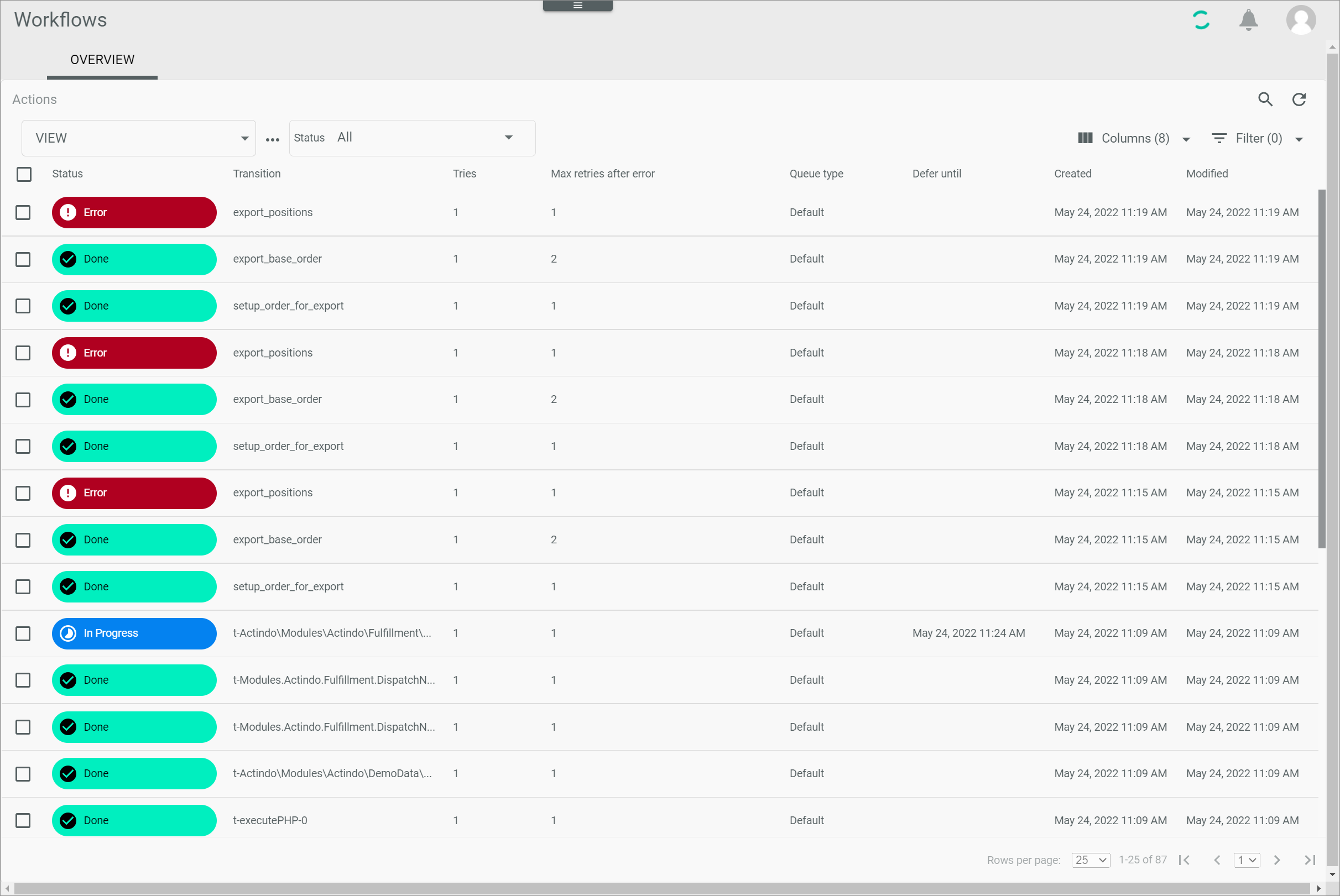
Process actions
-
VIEW
Click the drop-down list to select the view. All created views are displayed in the drop-down list. Click the (Points) button to the right of the VIEW drop-down list to display the context menu and create a view.
 -
(Points)
Click this button to the right of the View drop-down list to display the context menu. The following menu entries are available:-
 create
Click this entry to create a view. The Create view window is displayed, see Create view. -
 rename
Click this entry to rename the selected view. The Rename view window is displayed, see Rename view. This menu entry is only displayed if a view has been selected. -
 reset
reset
Click this entry to reset all unsaved changes to the settings of the selected view. This menu entry is only displayed if a view has been selected and any changes have been made to the view settings. -
 publish
Click this entry to publish the view. This menu entry is only displayed if a view has been selected and unpublished. -
 unpublish
Click this entry to unpublish the view. This menu entry is only displayed if a view has been selected and published. -
 save
save
Click this entry to save the current view settings in the selected view. This menu entry is only displayed if a view has been selected.When the settings of a view have been changed, an asterisk is displayed next to the view name. The asterisk is hidden as soon as the changes have been saved.
 delete
Click this entry to delete the selected view. A confirmation window to confirm the deletion is displayed. This menu entry is only displayed if a view has been selected.
-
-
-
Status
Click the drop-down list to select a process status. The following statuses are available:- All
Select this option to display all actions, regardless of their status. - In progress
Select this option to display the actions that are currently active. - Done
Select this option to display the actions that have been already executed. - Error
Select this option to display the actions that have given an error. - Suspended
Select this option to display the actions that have been manually paused. - Process aborted
Select this option to display the actions included in a process that has been manually ended.
- All
-
 (Search)
Click this button to display the search bar and search for an action.The search function can be used to search for a transition name. At least three characters must be entered.
-
 (Refresh)
Click this button to update the list of actions. -
 Columns (x)
Click this button to display the columns bar and customize the displayed columns and the order of columns in the list. The x indicates the number of columns that are currently displayed in the list.  Filter (x)
Click this button to display the filter bar and customize the active filters. The x indicates the number of filters that are currently active.
The list displays all actions that are matching the selected status. Depending on the settings, the displayed columns may vary. All fields are read-only. Click an action to display the corresponding process in the Process ID view, see Process ID.
When clicking an action in the Process actions view, the selected action is displayed in the Actions tab of the corresponding Process ID view. The Actions tab of the Process ID view is, in fact, an excerpt of the Process actions menu entry. Click the Logs tab in the Process ID view for detailed information about the selected process actions, see Logs.
Select the checkbox to display the editing toolbar. If you click the checkbox in the header, all actions in the list are selected.
Depending on the action status, the editing toolbar displays the following buttons:
-
 (Retry)
Click this button to retry the action. This button is displayed if the action status is Error. -
 (Suspend)
Click this button to suspend the action temporarily. This button is displayed if the action status is In progress. When clicking this button, the action status changes to Suspended. -
 (Start)
Click this button to resume the action. This button is displayed if the action status is Suspended. When clicking this button, the action status changes again to In progress. The warning sign in the Suspended actions column of the Processes view is no longer displayed. -
[REMOVE DEFER TIME]
Click this button to skip the defer time preconfigured in the action, if any. The action is then executed immediately. This button is displayed if the action status is In progress.The defer time is preconfigured pro action in the system. If the defer time is removed once, the action is executed immediately. If the action gives an error again, it will be retried once that preconfigured defer time has elapsed.
-
Status
Status of the action. The different process statuses are displayed in different colors. The following statuses are possible:- In progress (blue)
- Done (green)
- Error (red)
- Suspended (dark gray)
- Process aborted (black)
-
Transition
Transition key. -
Tries
Number of times the action execution has been tried. -
Max retries after error
Number of times the action execution must be retried after error. This setting depends on the transition and is usually preconfigured. In the current version, this value can be modified in the Import JSON window, see Import JSON. -
Queue type
Queue type assigned to the action. By default, the Default queue type is assigned.A different queue type can be selected by editing an action in the workflow editor.
-
Defer until
Next point in time when the action is being tried. This setting depends on the action and is not available in all actions. -
Created
Date and time of creation. -
Modified
Date and time of modification. -
ID
Action identification number. The ID number is automatically assigned by the system. - Transition ID
Transition identification number. The ID number is automatically assigned by the system.
Create view
Workflows > Process actions > Tab OVERVIEW > Button Points > Menu entry create
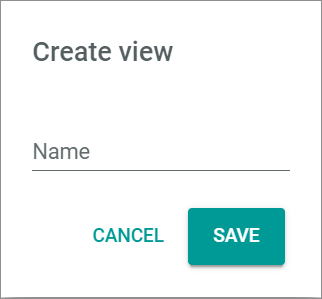
For a detailed description of this window and the corresponding functions, see Create view.
Rename view
Workflows > Process actions > Tab OVERVIEW > Button Points > Menu entry rename
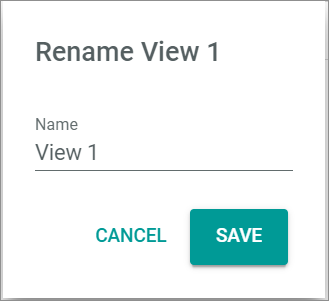
For a detailed description of this window and the corresponding functions, see Rename view.