

Overview
Workflows > Workflows > Tab OVERVIEW
Workflows
-
VIEW
Click the drop-down list to select the view. All created views are displayed in the drop-down list. Click the (Points) button to the right of the VIEW drop-down list to display the context menu and create a view.
 -
(Points)
Click this button to the right of the View drop-down list to display the context menu. The following menu entries are available:-
 create
Click this entry to create a view. The Create view window is displayed, see Create view. -
 rename
Click this entry to rename the selected view. The Rename view window is displayed, see Rename view. This menu entry is only displayed if a view has been selected. -
 reset
reset
Click this entry to reset all unsaved changes to the settings of the selected view. This menu entry is only displayed if a view has been selected and any changes have been made to the view settings. -
 publish
Click this entry to publish the view. This menu entry is only displayed if a view has been selected and unpublished. -
 unpublish
Click this entry to unpublish the view. This menu entry is only displayed if a view has been selected and published. -
 save
save
Click this entry to save the current view settings in the selected view. This menu entry is only displayed if a view has been selected.When the settings of a view have been changed, an asterisk is displayed next to the view name. The asterisk is hidden as soon as the changes have been saved.
 delete
Click this entry to delete the selected view. A confirmation window to confirm the deletion is displayed. This menu entry is only displayed if a view has been selected.
-
-
-
 (Search)
Click this button to display the search bar and search for a workflow.The search function can be used to search for a workflow name and key. At least three characters must be entered.
-
 (Refresh)
Click this button to update the list of workflows. -
 Columns (x)
Click this button to display the columns bar and customize the displayed columns and the order of columns in the list. The x indicates the number of columns that are currently displayed in the list.  Filter (x)
Click this button to display the filter bar and customize the active filters. The x indicates the number of filters that are currently active.
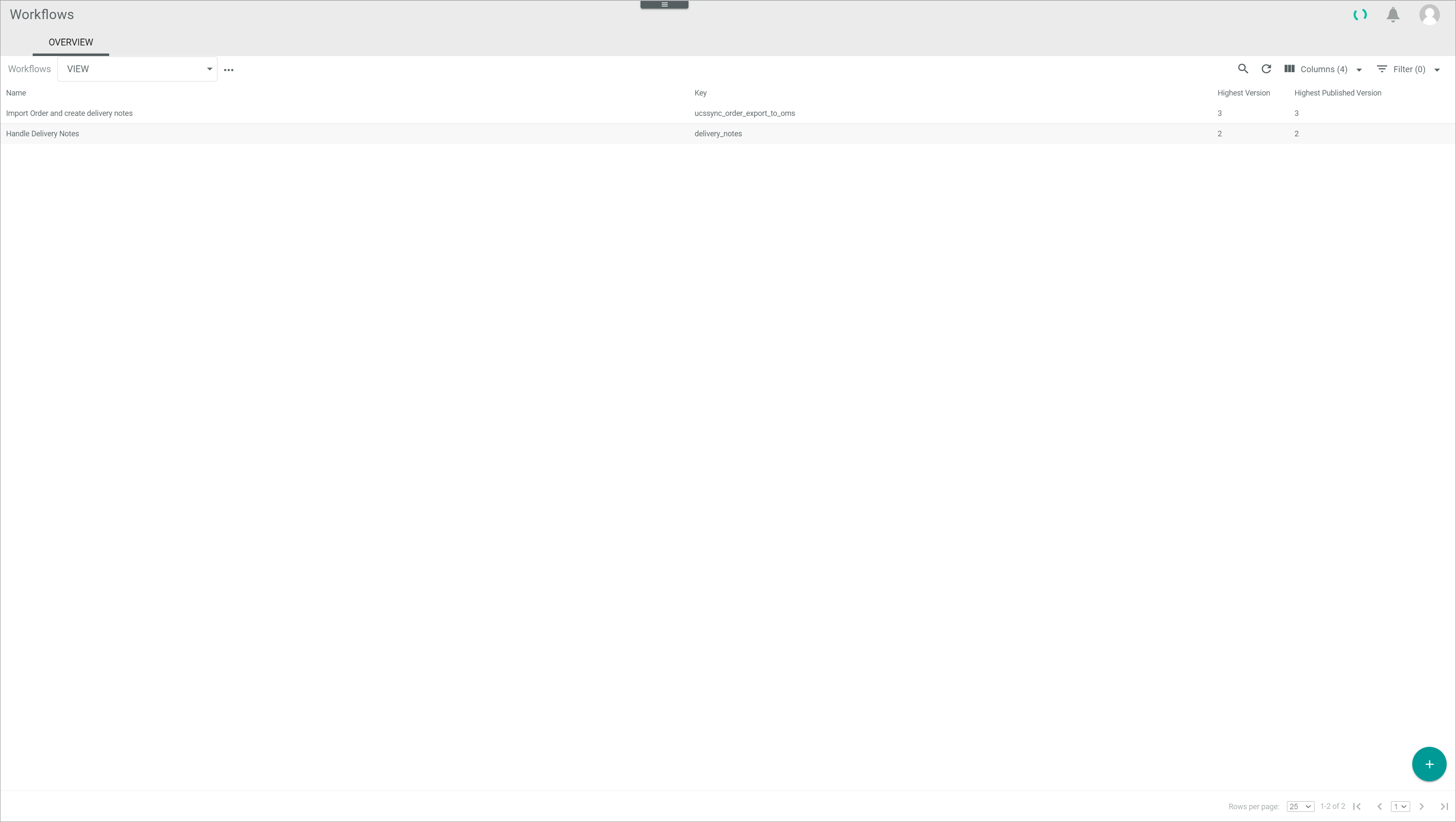
The list displays all workflows. Depending on the settings, the displayed columns may vary. All fields are read-only.
-
Name
Name of the workflow. -
Key
Workflow key. The key is required for API access and must be unique within the workflow version. -
Highest version
Highest existing version of the workflow. -
Highest published version
Highest published version of the workflow. -
ID
Workflow identification number. The ID number is automatically assigned by the system when the workflow is created.  (Add)
(Add)
Click this button to create a workflow. The New workflow window is displayed, see New workflow.
New workflow
Workflows > Workflows > Tab OVERVIEW > Button Add
-
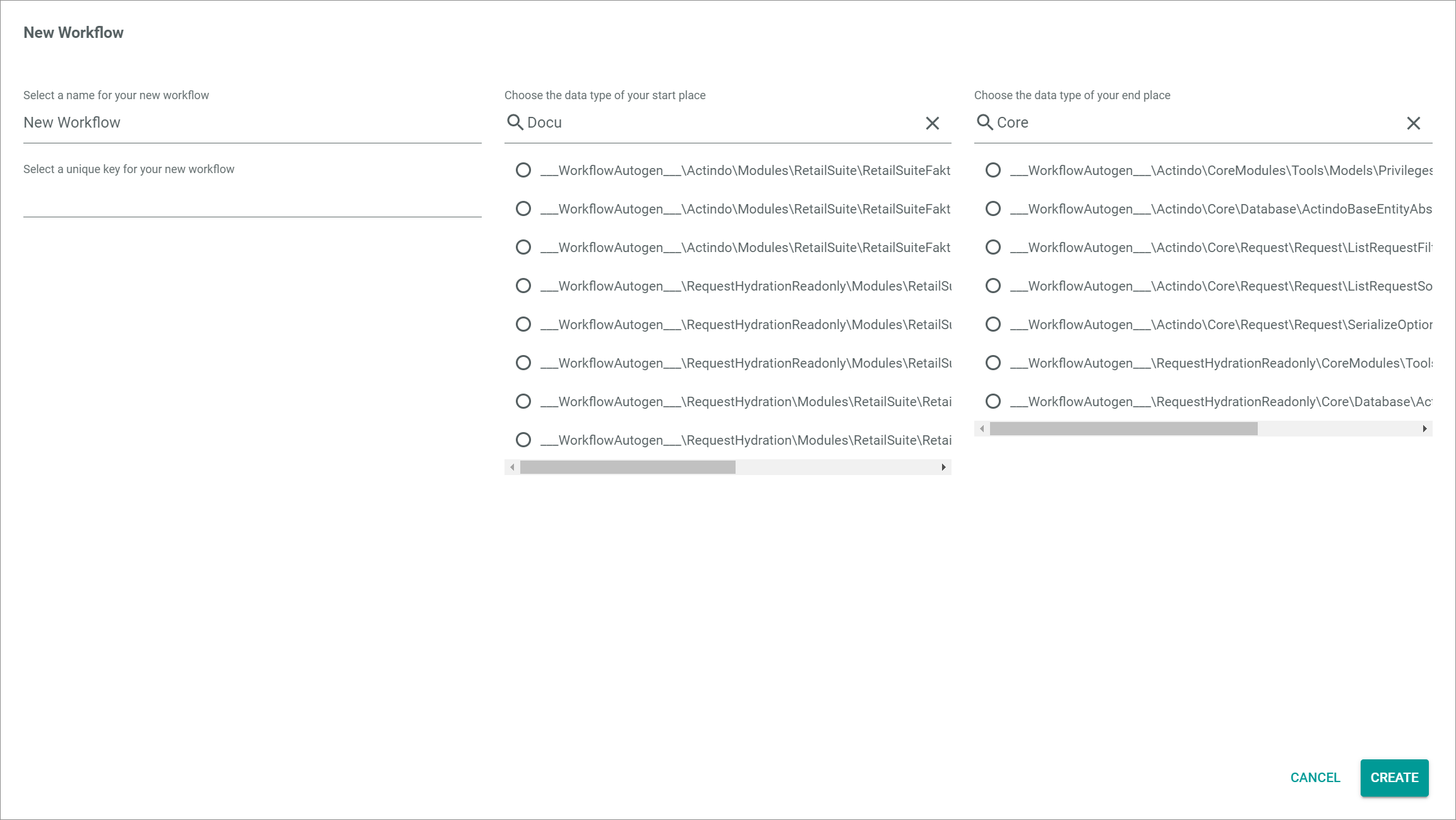
Select a name for your new workflow
Enter a name for the new workflow. -
Select a unique key for your new workflow
Enter a key for the workflow. The key is required for API access and must be unique within the workflow version. -
Choose the data type of your start place
Enter the name of the start place or a keyword to search for and select the appropriate place in the list of places.The list of places is filtered for your keyword as you type.
-
 (Delete)
Click this button to clear the search bar field for the start place. -
Choose the data type of your end place
Enter the name of the end place or a keyword to search for and select the appropriate place in the list of places.The list of places is filtered for your keyword as you type.
-
(Delete)
Click this button to clear the search bar field for the end place. -
[CANCEL]
Click this button to cancel creating a new workflow. The New workflow window is closed. - [CREATE]
Click this button to create a new workflow. The workflow editor with the defined start and end places is displayed.
Workflow versions
Workflows > Workflows > Tab OVERVIEW > Select workflow
-
 (Back)
Click this button to close the Workflow versions view and return to the Workflows view. All changes are rejected. -
VIEW
Click the drop-down list to select the view. All created views are displayed in the drop-down list. Click the (Points) button to the right of the VIEW drop-down list to display the context menu and create a view. -
(Points)
Click this button to the right of the View drop-down list to display the context menu. The following menu entries are available:-
create
Click this entry to create a view. The Create view window is displayed, see Create view. -
rename
Click this entry to rename the selected view. The Rename view window is displayed, see Rename view. This menu entry is only displayed if a view has been selected. -
reset
Click this entry to reset all unsaved changes to the settings of the selected view. This menu entry is only displayed if a view has been selected and any changes have been made to the view settings. -
publish
Click this entry to publish the view. This menu entry is only displayed if a view has been selected and unpublished. -
unpublish
Click this entry to unpublish the view. This menu entry is only displayed if a view has been selected and published. -
save
Click this entry to save the current view settings in the selected view. This menu entry is only displayed if a view has been selected.When the settings of a view have been changed, an asterisk is displayed next to the view name. The asterisk is hidden as soon as the changes have been saved.
- delete
Click this entry to delete the selected view. A confirmation window to confirm the deletion is displayed. This menu entry is only displayed if a view has been selected.
-
-
-
(Search)
Click this button to display the search bar and search for a workflow version.The search function can be used to search for a workflow version ID. At least three characters must be entered.
-
(Refresh)
Click this button to update the list of workflow versions. -
Columns (x)
Click this button to display the columns bar and customize the displayed columns and the order of columns in the list. The x indicates the number of columns that are currently displayed in the list. - Filter (x)
Click this button to display the filter bar and customize the active filters. The x indicates the number of filters that are currently active.
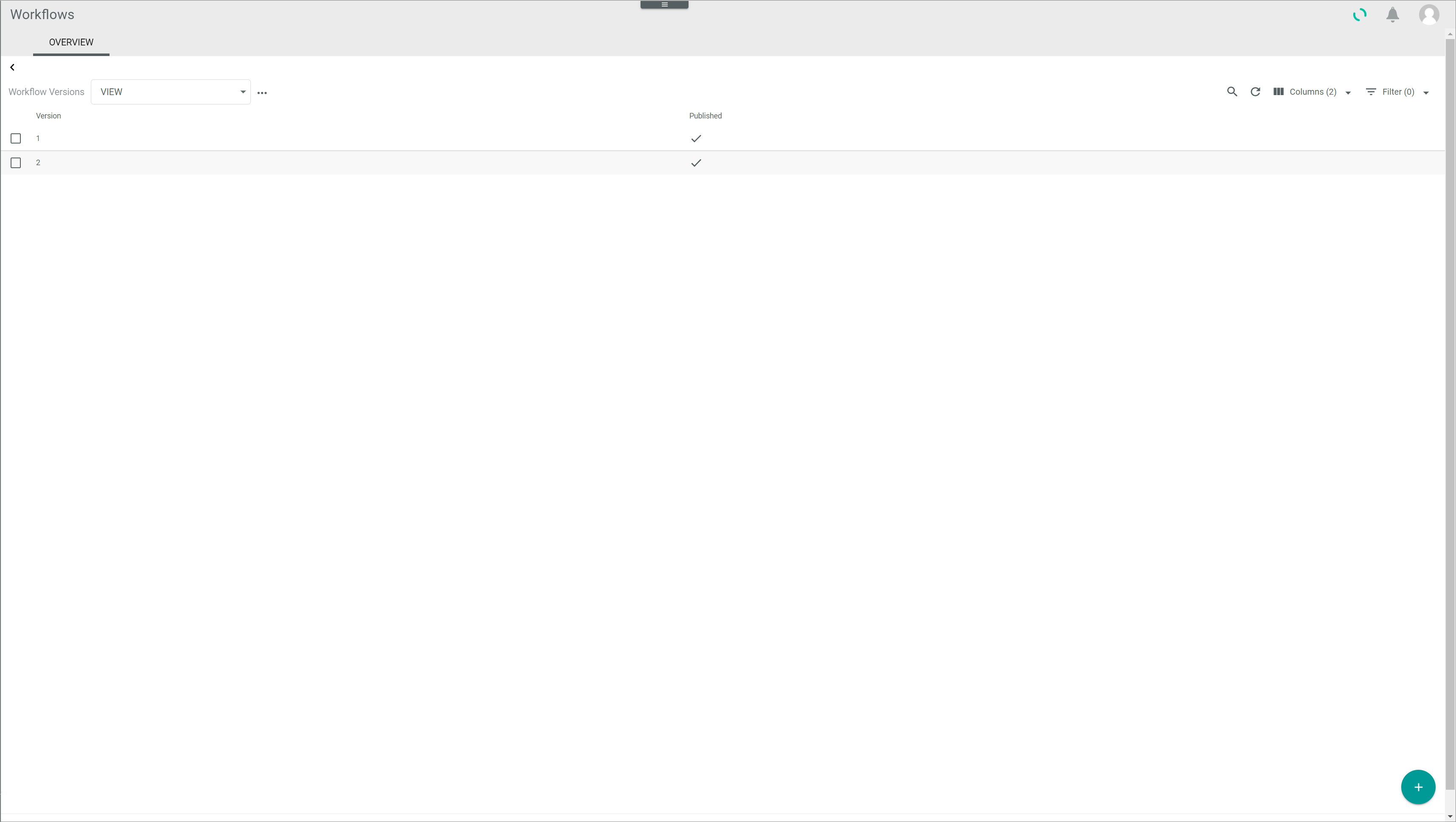
The list displays all workflow versions of the selected workflow. Depending on the settings, the displayed columns may vary. All fields are read-only.
-
Version
Version number of the workflow. -
Published
 (Checkmark): The workflow version is published.
- (Cross): The workflow version is unpublished.
-
ID
Identification number of the workflow version. The ID number is automatically assigned by the system when the workflow version is created. -
Select the checkbox to display the editing toolbar. -
[PUBLISH]
Click this button to publish a workflow version. This button is only displayed if the selected workflow version is unpublished. - [UNPUBLISH]
Click this button to unpublish a workflow version. This button is only displayed if the selected workflow version is published.
Workflow editor
Workflows > Workflows > Tab OVERVIEW > Select workflow > Select version
-
(Back)
Click this button to close the workflow editor and return to the list of workflows. All changes are rejected. -
 (Points)
Click this button to the right of the workflow name to display the context menu. The following menu entries are available:-
Triggers
Click this entry to add triggers and conditions. The Edit trigger for workflow "Workflow name" window is displayed, see Edit trigger for workflow "Workflow name". -
Import JSON
Click this entry to import data in JSON format. The Import JSON window is displayed, see Import JSON. -
Export JSON
Click this entry to export data in JSON format. The Export JSON window is displayed, see Export JSON. - Deploy
Click this entry to publish a new workflow version with the current state.
-
-
 (Undo)
Click this button to undo the last change made. -
 (Redo)
Click this button to redo the last undone change. - [NEW ACTION]
Click this button to add a transition. The Search for an action window is displayed, see Search for an action.
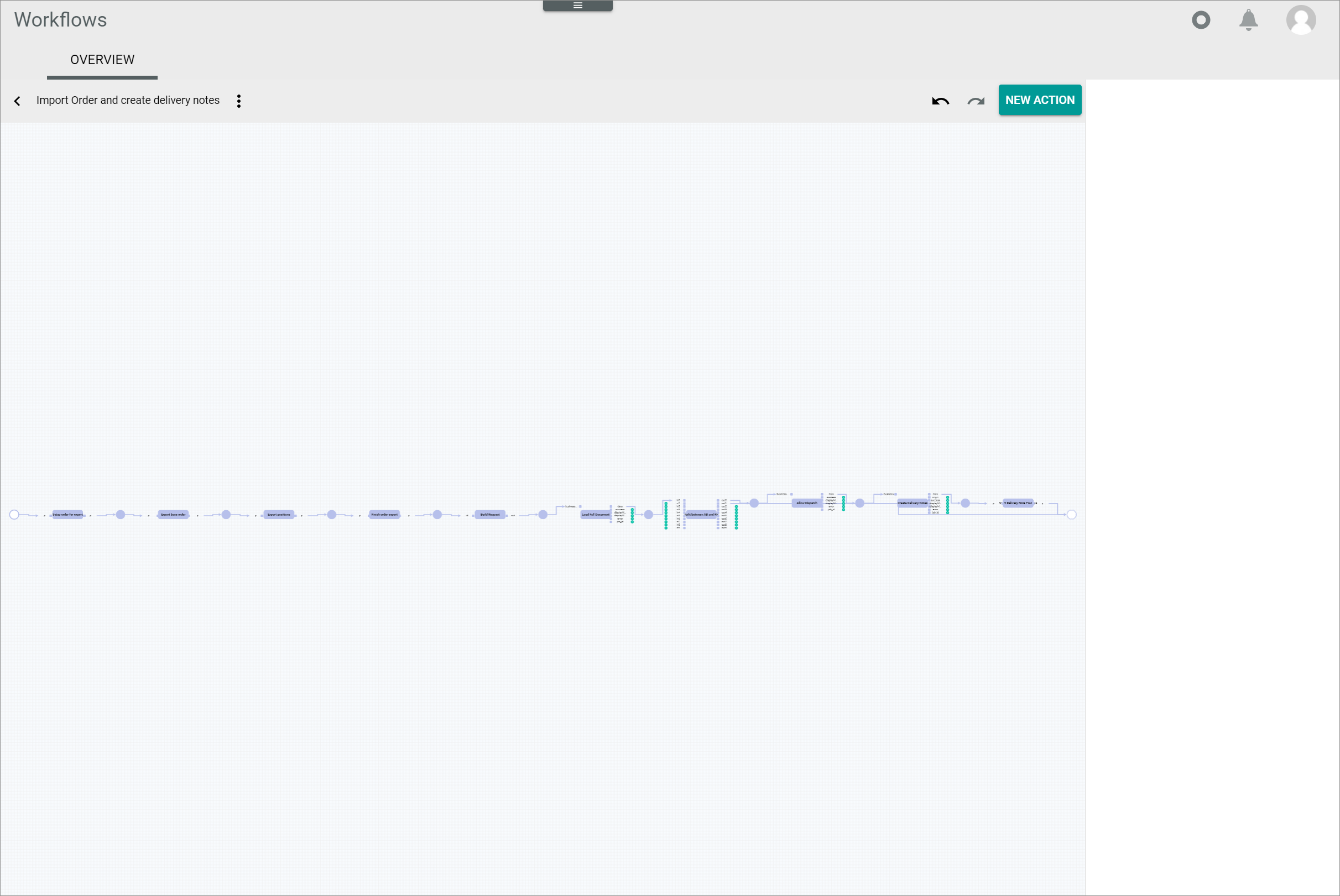
The workflow diagram includes the following elements:
-
Place
Intermediate stage in the workflow, represented by a circle, usually provided with incoming and/or outcoming arcs. It serves as link between two transitions.
If you click a place in the workflow editor, it becomes highlighted and the corresponding element settings are displayed in the settings side bar.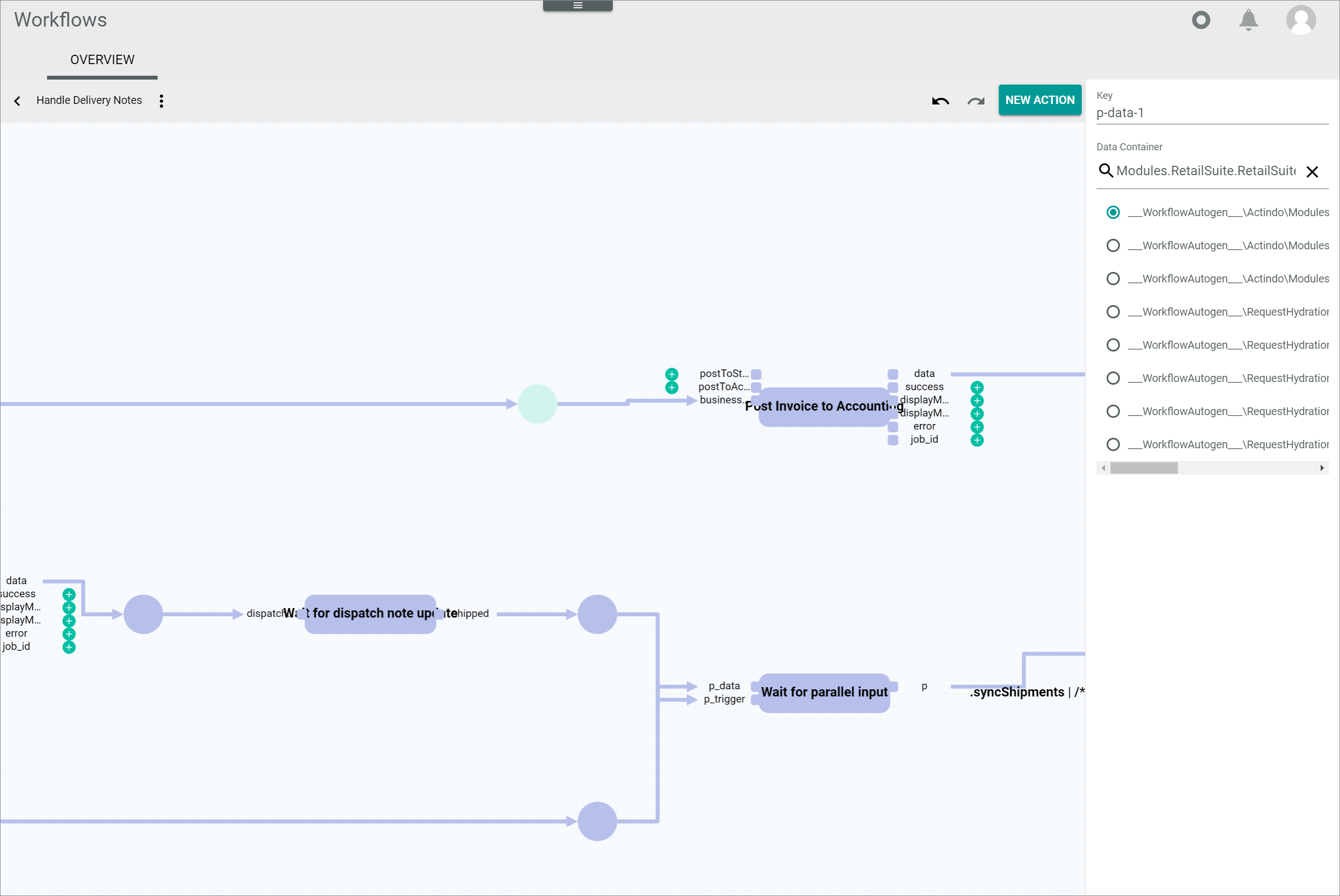
-
Key
Place key. This field is read-only. The key is required for API access and must be unique within the workflow version. - Data container
Use this field to define the data type to be used in the place. If necessary, click the (Delete) button to display the whole list of available data types. Enter a search text for the desired data type. The list of transitions is filtered for your search text as you type. Select the radio button of the appropriate option.
For detailed information, see Places.
-
-
Start/end place
Special types of places at the beginning and at the end of a workflow. Every workflow starts with a single place and ends with a single place.
If you click the start/end place, it becomes highlighted and the corresponding element settings are displayed in the settings side bar.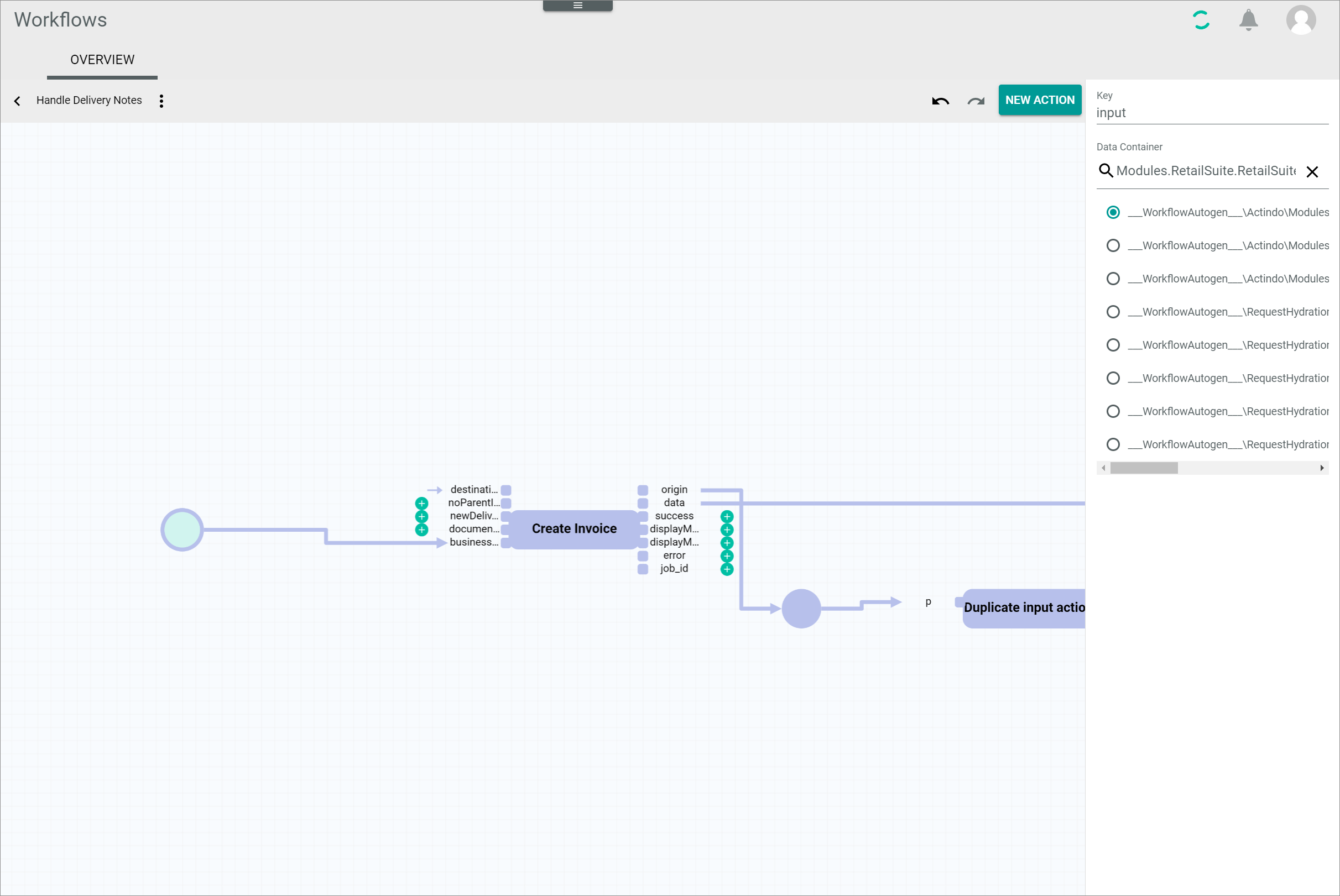
-
Key
Place key. This field is read-only. The key is required for API access and must be unique within the workflow version. - Data container
Use this field to define the data type to be used in the place. If necessary, click the (Delete) button to display the whole list of available data types. Enter a search text for the desired data type. The list of transitions is filtered for your search text as you type. Select the radio button of the appropriate option.
For detailed information, see Start and end place.
-
-
Transition
Building blocks that are chained together through places to configure a workflow, represented by a rectangle. All transitions contain a certain, predefined number of input and output ports, represented by a small square to the left and the right of the transition.
When clicking a transition in the workflow editor, it becomes highlighted and the corresponding element settings are displayed in the settings side bar.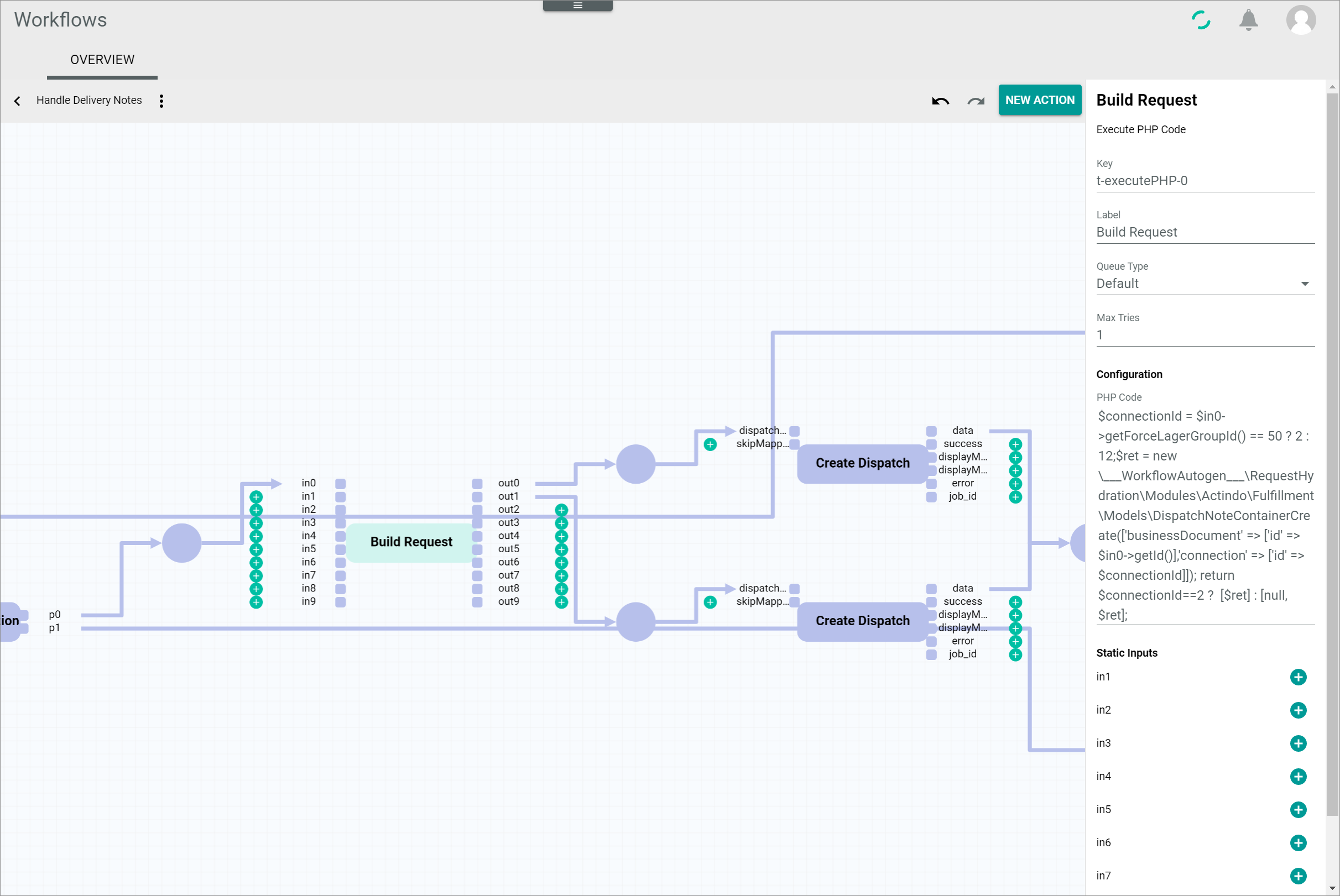
The transition settings side bar is located to the right of the workspace and allows to define the transition settings. The following fields are displayed:
-
Key
Transition key. This field is read-only. The key is required for API access and must be unique within the workflow version. -
Label
Transition label defined by the user. It can be used to specify or simplify the transition name. When editing the transition label, it is changed both at the top of the settings side bar and in the transition rectangle in the diagram. -
Queue type
Click the drop-down list to select the applicable queue type. -
Task event
Click the drop-down list and select the applicable task event. All available task events are displayed. This option is linked to the Tasks module. The drop-down list is only displayed if the Tasks module is installed and the user has the necessary rights.The ActindoWorkflow Process Execution Failed task is preconfigured by default. A list of all existing task events is displayed in the Events menu entry of the Tasks module.
-
Configuration
Depending on the transition, there might be configuration options, for instance, defining an email where a receipt or document must be sent. Editing the transition configuration may require basic programming knowledge.Most transitions are preconfigured and do not include configuration options. In this case, the Configuration section is not displayed.
- Static inputs
All unlinked inputs are listed in this section. Static inputs can be used to configure static values for certain inputs. They can be defined by the user clicking the (Add) button. Only valid JSON values are accepted. When used, static inputs are displayed by a small arrow in front of the input ports in the workflow diagram. This section is only displayed, if the selected transition has at least one unlinked input port.
For detailed information, see Transitions.
-
-
Input/output port
Represented by a small square positioned to the left (input) and to the right (output) of the transition, they are defined with a descriptive name, such as origin, data or destination. They can be mandatory or optional. If optional, an (Add) button is displayed next to them.
For detailed information, see Input and output ports. - Arc
The arcs are the links connecting a place with the input and output port(s) of an transition to model the flow of information. The arcs are represented by arrows. Arcs connecting a place to an input port are called incoming arcs, arcs connecting an output port to a place are called outcoming arcs .
For detailed information, see Arcs.
Edit trigger for workflow "Workflow name"
Workflows > Workflows > Tab OVERVIEW > Button Add > Button CREATE > Button Points > Menu entry Triggers
Workflows > Workflows > Tab OVERVIEW > Select a workflow > Select a workflow version > Button Points > Menu entry Triggers
-
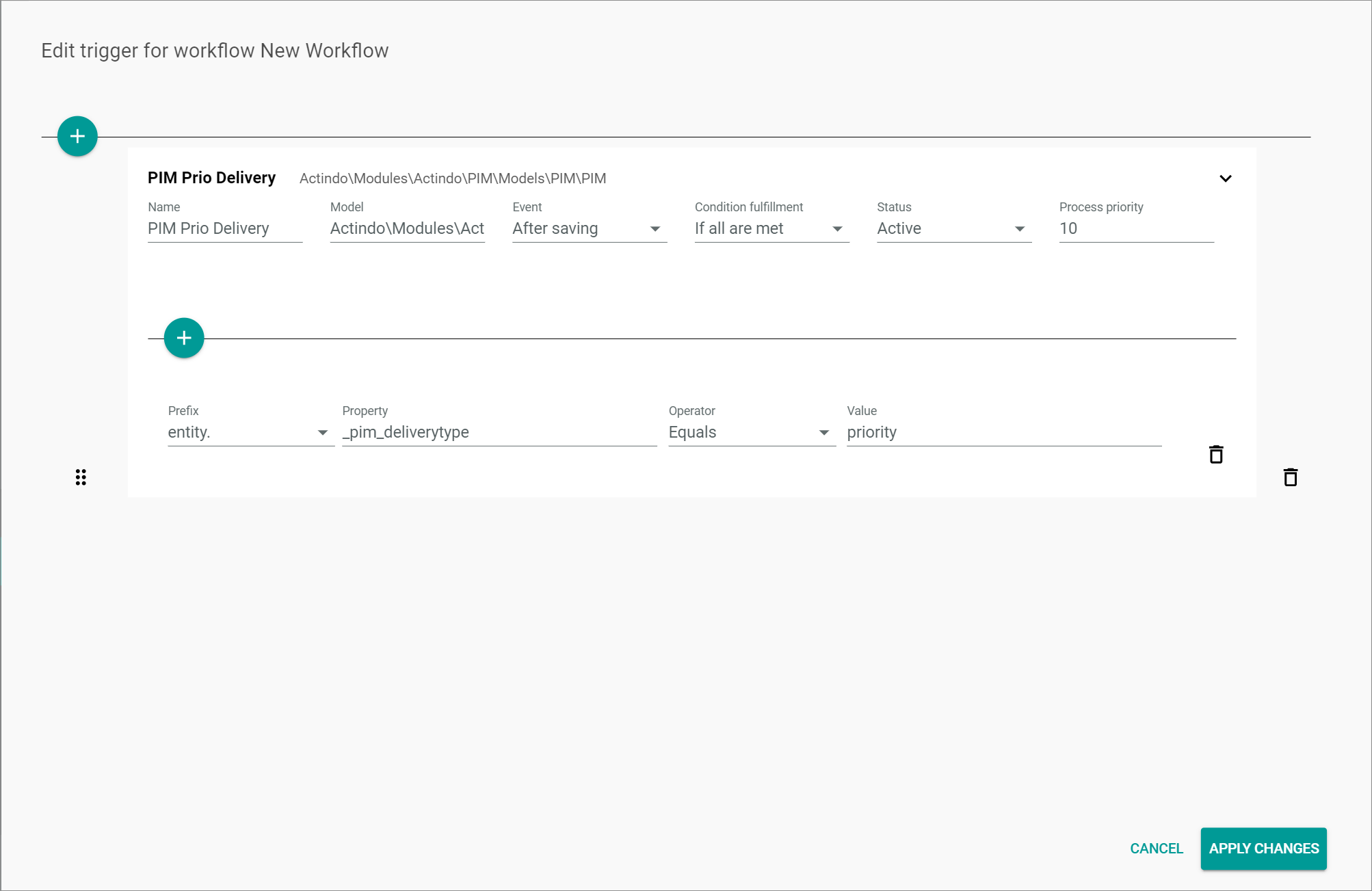
(Add trigger)
Click this button to add a trigger. A trigger input line is displayed.The following fields are only displayed when a trigger has been added.
"Trigger name"
-
 (Collapse)
Click this button to collapse the trigger box. -
 (Expand)
Click this button to expand the trigger box. -
Name
Enter a descriptive name for the new trigger. The entered name is displayed above the trigger input line. -
Model
Enter the applicable namespace of the model. The entered namespace is displayed to the right of the name above the trigger input line. -
Event
Click the drop-down list and select the appropriate event. The following options are available:- After creation
Select this option for the trigger to be executed after the model has been created. This option is preselected by default. - After saving
Select this option for the trigger to be executed after the model has been saved.
- After creation
-
Condition fulfillment
Click the drop-down list and select the appropriate condition fulfillment. The following options are available:- If all are met
Select this option if you want all conditions to be met for the trigger to be executed. This option is preselected by default. - If any is met
Select this option if you want the trigger to be executed if any single one of the configured conditions is met.
- If all are met
-
Status
Click the drop-down list and select the appropriate status. The following options are available:- Active
Select this option to activate the trigger. This option is preselected by default. - Inactive
Select this option to deactivate the trigger temporarily.
- Active
-
Process priority
Enter the priority for the process execution. The priority is specified with a positive integer. The greater the number, the higher the priority.As soon as all trigger fields are completed, the
(Add) button is displayed below the trigger input line. -
 (Drag)
Click and hold this button to move the trigger to a another position in the list. Drop the trigger in the desired position by releasing the mouse button. -
 (Delete)
Click the button to the right of the trigger box to delete the trigger. -
(Add condition)
Click this button to add a condition. A condition input line is displayed. The button is only displayed if all trigger fields have been completed.The following fields are only displayed when a condition has been added.
-
Prefix
Click the drop-down list and select the appropriate prefix. The following options are available:- entity.
Select this option if you want to refer to any property independently of its change status. The option is usually selected if the After creation event is selected in the Event drop-down list of the trigger fields. This option is preselected by default. - changeset.
Select this option if you want to refer to a property that has been changed. Only properties that have been changed are included to the change set.
- entity.
-
Property
Enter the applicable property for the selected prefix.The properties of an entity you can refer to are described in the relevant API documentation. To include a deeper level of the data field, enter a point . at a time, for instance {$entity._pim_tax_zone.id}. The first point is already included in the Prefix field, so you can start with the property name without adding a point at the beginning.
-
Operator
Click the drop-down list and selected the appropriate option. The following options are available:- Equals
Select this option if the property value must equal the value specified in the Value field for the trigger to be executed. This option is preselected by default. - Does not equal
Select this option if the property value must not equal the value specified in the Value field for the trigg er to be executed. - Is set
Select this option if any property value must be set for the trigger to be executed. No value must be entered in the Value field.
- Equals
-
Value
Enter the applicable value. -
(Delete)
Click the button to the right of the condition input line to delete the condition. -
[CANCEL]
Click this button to cancel the editing the trigger(s) and reject all changes. - [APPLY CHANGES]
Click this button to save all changes made to the trigger(s).
Import JSON
Workflows > Workflows > Tab OVERVIEW > Select workflow > Select version > Button Points > Menu entry Import JSON
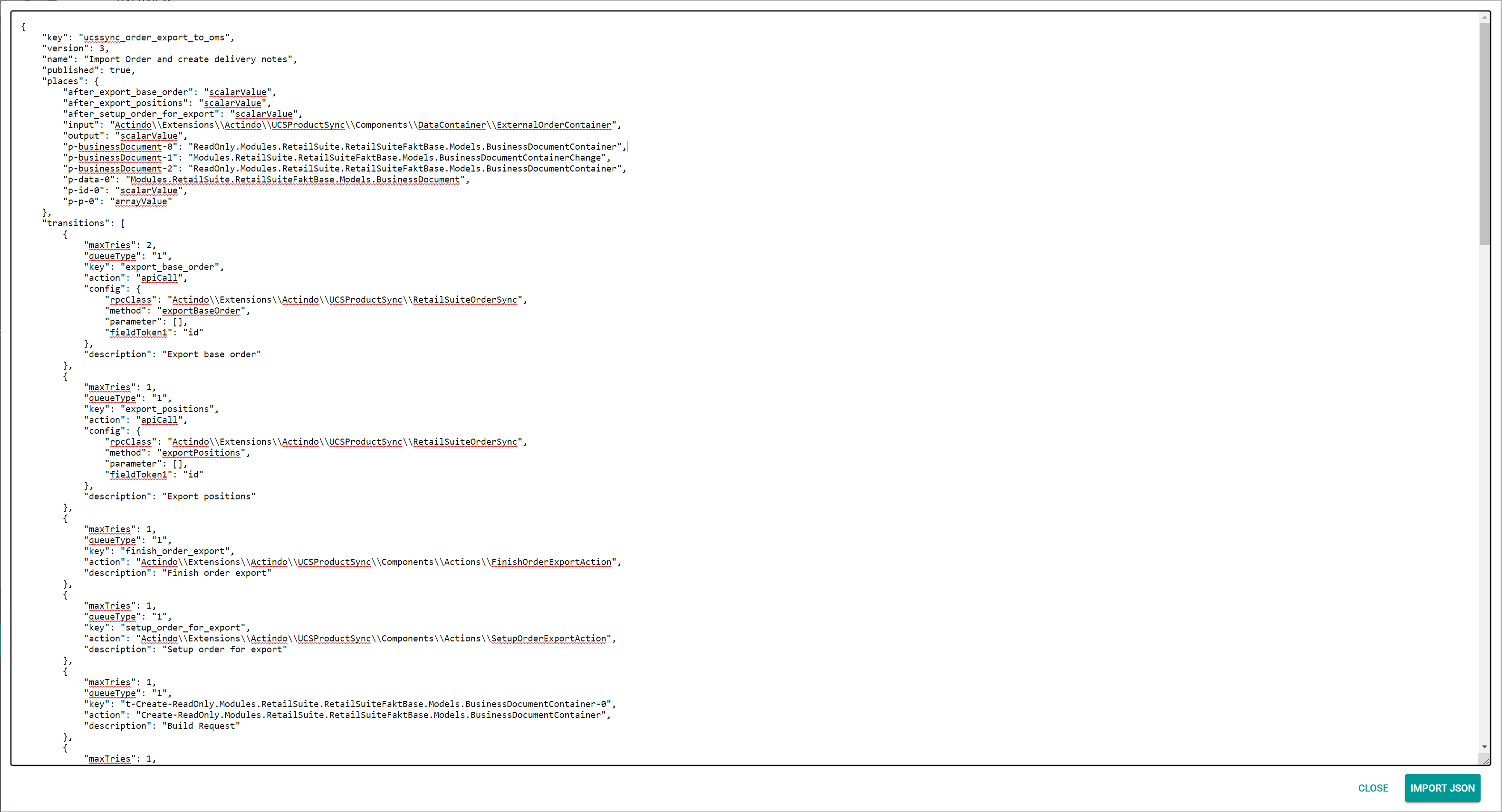
The Import JSON window displays the workflow source code in JSON format. Configuration changes can be made in this view and applied with the [IMPORT JSON] button.
> [Info] To modify the source code, in-depth programming knowledge is needed.-
[CLOSE]
Click this button to close the window and reject all changes. - [IMPORT JSON]
Click this button to apply all changes made to the source code.
Export JSON
Workflows > Workflows > Tab OVERVIEW > Select workflow > Select version > Button Points > Menu entry Export JSON
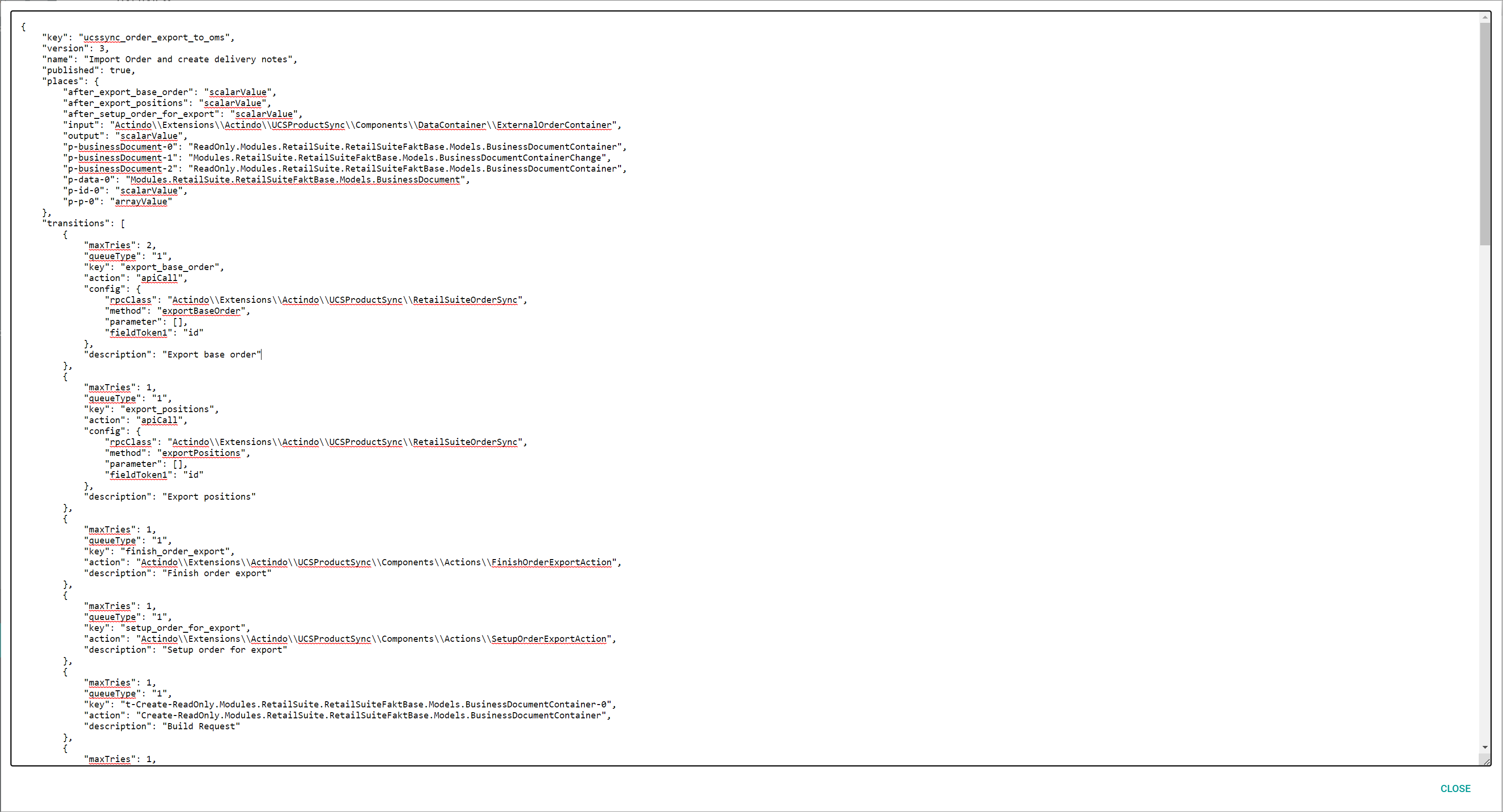
The Export JSON window displays all workflow source code in JSON format. This view is read-only.
- [CLOSE]
Click this button to close the window.
Search for an action
Workflows > Workflows > Tab OVERVIEW > Select workflow > Select version > Button NEW ACTION Workflows > Workflows > Tab OVERVIEW > Select workflow > Select version > Button Add next to a place
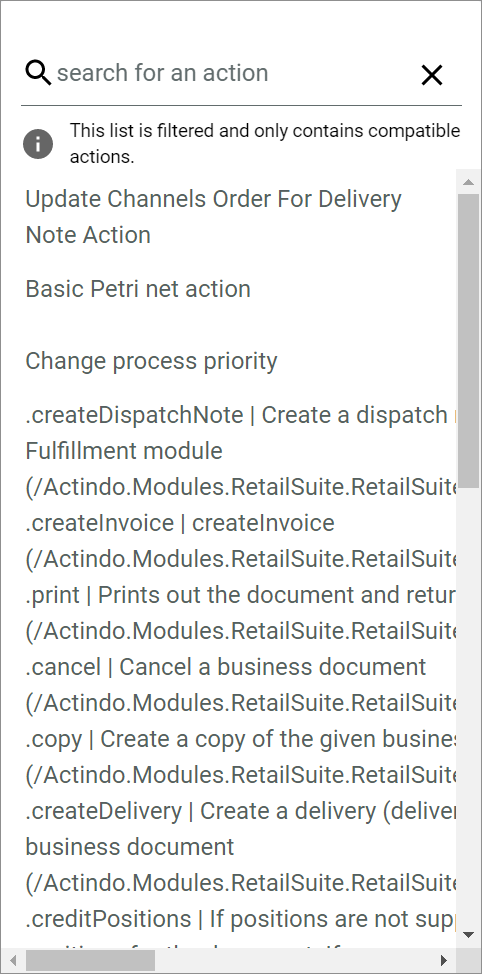
The Search for an action window displays a list of possible transitions for the selected place.
> [Info] If clicking the [NEW ACTION] button, all existing transitions are displayed. If clicking the  (Add) button next to a place, only the compatible transitions for that place are displayed, as specified in the information message of the *Search for an action* window below the search bar.-
Search for an action (search bar)
Click this field to enter the name of the transition or a keyword to search for. Select an transition in the list of transitions to add the selected transition to the workflow.The list of transitions is filtered for your keyword as you type.
- (Delete)
Click this button to clear the search bar field.
Create view
Workflows > Workflows > Tab OVERVIEW > Button Points > Menu entry create
-
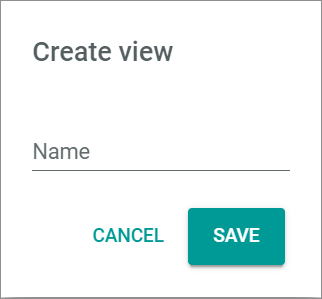
Name
Enter a name for the view. -
[CANCEL]
Click this button to cancel creating a view. The Create view window is closed. - [SAVE]
Click this button to save the new view. The Create view window is closed. The view is saved and displayed in the View drop-down list.
This window can also be accessed from the following tabs in the user interface:
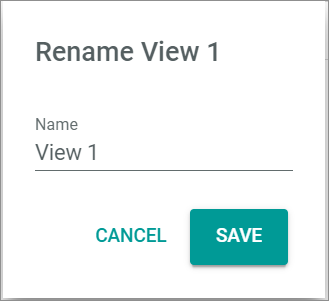
Rename view
Workflows > Processes > Tab OVERVIEW > Button Points > Menu entry rename
-
Name
Click the field to edit the view name. -
[CANCEL]
Click this button to cancel renaming a view. The Rename view window is closed. - [SAVE]
Click this button to save the changes to the view name. The Rename view window is closed. The new name for the view is saved and displayed in the View drop-down list.
This window can also be accessed from the following tabs in the user interface: