

List
Fulfillment > Dispatch notes > Tab LIST
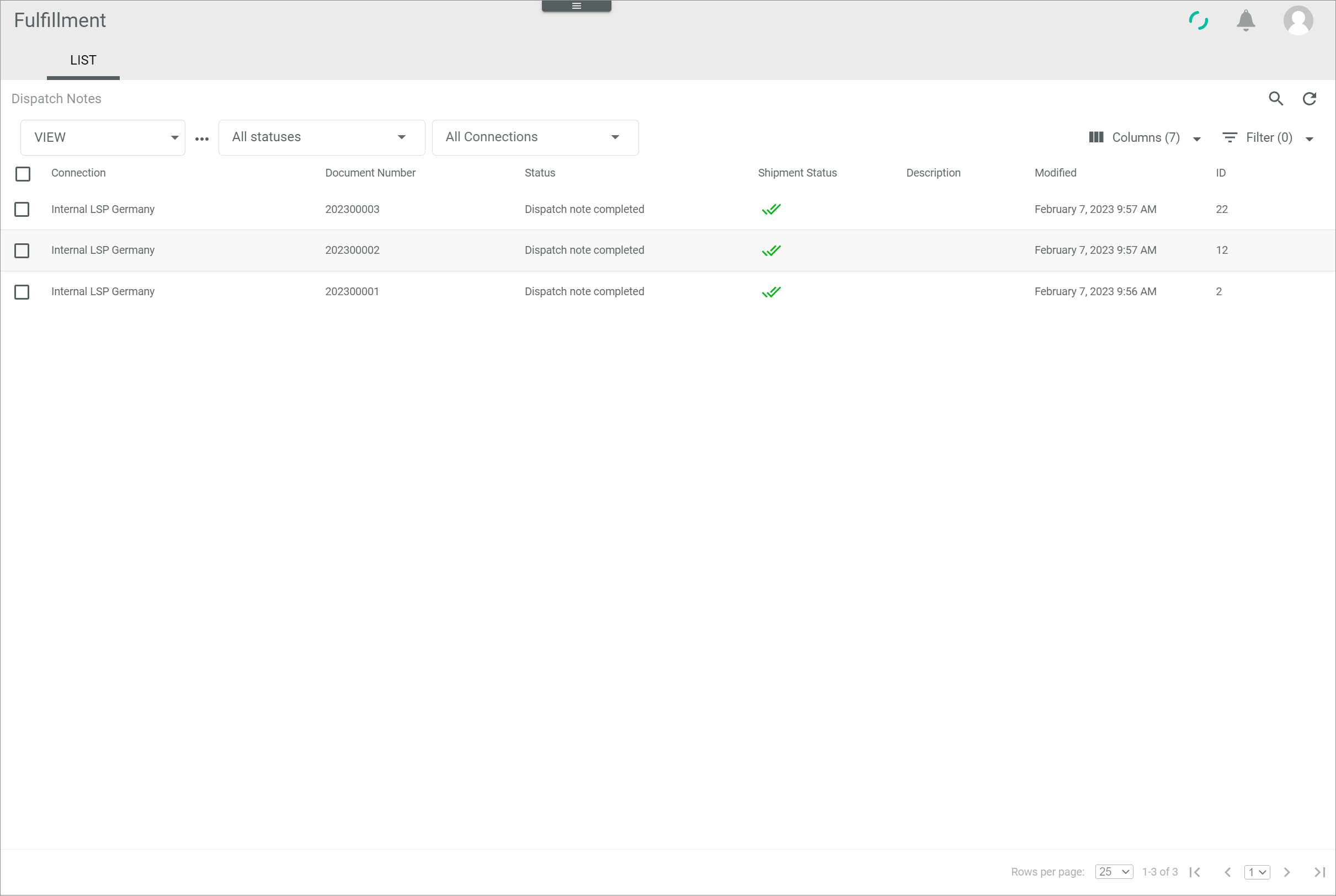
Dispatch notes
-
VIEW
Click the drop-down list to select the view. All created views are displayed in the drop-down list. Click the (Points) button to the right of the VIEW drop-down list to display the context menu and create a view.
 -
(Points)
Click this button to the right of the View drop-down list to display the context menu. The following menu entries are available:-
 create
Click this entry to create a view. The Create view window is displayed, see Create view. -
 rename
Click this entry to rename the selected view. The Rename view window is displayed, see Rename view. This menu entry is only displayed if a view has been selected. -
 reset
reset
Click this entry to reset all unsaved changes to the settings of the selected view. This menu entry is only displayed if a view has been selected and any changes have been made to the view settings. -
 publish
Click this entry to publish the view. This menu entry is only displayed if a view has been selected and unpublished. -
 unpublish
Click this entry to unpublish the view. This menu entry is only displayed if a view has been selected and published. -
 save
save
Click this entry to save the current view settings in the selected view. This menu entry is only displayed if a view has been selected.When the settings of a view have been changed, an asterisk is displayed next to the view name. The asterisk is hidden as soon as the changes have been saved.
 delete
Click this entry to delete the selected view. A confirmation window to confirm the deletion is displayed. This menu entry is only displayed if a view has been selected.
-
-
-
Status
Click the drop-down list to select a dispatch note status. The following options are available:- All statuses
Select this option to display all dispatch notes, regardless of their status. - New dispatch note
Select this option to display all new dispatch notes. - Transferred to partner
Select this option to display all dispatch notes that have been transferred to the fulfiller. - Partner confirmed receival
Select this option to display all dispatch notes whose receival has been confirmed by the fulfiller. - Dispatch note completed
Select this option to display all dispatch notes that have been completed. - Error
Select this option to display all faulty dispatch notes. - Void
Select this option to display all void dispatch notes.
- All statuses
-
Connections
Click the drop-down list to select a connection. The following options are available:- All connections
Select this option to display the dispatch notes for all configured connections. - Connection name
Select this option to display the dispatch notes for the selected connection. When a specific connection has been selected, the All connections option is no longer displayed. Click the selected connection again to deselect it.
- All connections
-
 (Search)
Click this button to display the search bar and search for dispatch notes. -
 (Refresh)
Click this button to update the list of dispatch notes. -
 Columns (x)
Click this button to display the columns bar and customize the displayed columns and the order of columns in the list. The x indicates the number of columns that are currently displayed in the list. -
 Filter (x)
Click this button to display the filter bar and customize the active filters. The x indicates the number of filters that are currently active. -
Select the checkbox to display the editing toolbar. If you click the checkbox in the header, all dispatch notes in the list are selected. -
[VIEW]
Click this button to view a dispatch note. This button is only displayed if a single checkbox in the list of dispatch notes is selected. Alternatively, you can click directly a row in the list to view the corresponding dispatch note. The Dispatch note "Dispatch note ID" view is displayed, see Dispatch note. The Attributes tab is preselected. -
[EXPORT]
Click this button to export a dispatch note to the fulfiller. This button is displayed if the checkbox of at least one dispatch note is selected.The dispatch note is exported automatically by the system. If the export fails, the dispatch note can be manually re-exported. For detailed information, see Export a dispatch note.
- [FORCE COMPLETION]
Click this button to complete a dispatch note. This button is displayed if the checkbox of at least one dispatch note is selected.
For detailed information, see Complete a dispatch note.
The list displays all dispatch notes. Depending on the settings, the displayed columns may vary. All fields are read-only.
-
Connection
Name of the connection to the fulfiller. -
Document number
Dispatch note number. This number equals the delivery note number in the Order management module. -
Status
Dispatch note status. The following statuses are available:- New dispatch note
The dispatch note has been newly created. - Transferred to partner
The dispatch note has been transferred to the fulfiller. - Partner confirmed receival
The fulfiller has confirmed receival of the dispatch note. - Dispatch note completed
The dispatch note has been completed. - Error
The dispatch note has given an error while exporting. - Void
The dispatch note is void, for instance, because of an order cancellation.
- New dispatch note
-
Shipment status
Status of shipment associated with the dispatch note. The following options are available: (Cross)
No shipment has been performed yet. (Circular arrows)
The shipment is in progress. (Double check)
The shipment has been delivered. (Error)
The fulfiller has reported a shipment error.- Empty
No information on the shipment status has been received from fulfiller.
-
Description
Dispatch note description as defined by the user. Numbers, letters or a combination of characters may be used. -
Created
Date and time of the creation. -
Modified
Date and time of the last modification. -
ID
Dispatch note identification number. The ID number is automatically assigned by the system. -
Status ID
Dispatch note status identifier. The following options are available:- new
The dispatch note has been newly created. - transferred
The dispatch note has been transferred to the fulfiller. - confirmed
The fulfiller has confirmed receival of the dispatch note. - completed
The dispatch note has been completed. - error
The dispatch note has given an error while exporting. - void
The dispatch note is void, for instance, because of an order cancellation.
- new
-
Carrier
Carrier identifier. -
Shipping type
Type of shipment. The following options are available:- STND
Standard shipping type. - EXPR
Express shipping type.
The shipping type can be set up in the PACKAGING TYPES tab in the Settings menu entry, see Packaging types.
- STND
-
Shipping method
Shipping method identifier. Additional services offered as defined by the user. - "Attribute name"
You can add a column for each attribute that is assigned to the dispatch note. The column displays the attribute name, the row displays the corresponding attribute value of the dispatch note.
Dispatch note
Fulfillment > Dispatch notes > Tab LIST > Select a dispatch note

Dispatch note "Dispatch note ID"
-
 (Back)
Click this button to close the Dispatch note "Dispatch note ID" view and return to the list of dispatch notes. All changes are rejected. - [CLOSE]
Click this button to close the Dispatch note "Dispatch note ID" view. The list of dispatch notes is displayed.
Dispatch note – Attributes
Fulfillment > Dispatch notes > Tab LIST > Select a dispatch note > Tab Attributes
In the left margin column, all available attribute groups are displayed. Click a group to display the attributes that are assigned to this group on the right side of the Attributes tab. If the dispatch note contains attributes that are unassigned, the Unassigned group attribute group is automatically displayed in the left margin column.
-
 (Folders)
Attribute group that contains attribute sub-groups. Click the attribute group or the arrow left to the attribute group to unfold the group and display the attribute sub-groups.  (Folder)
Attribute group. Click the attribute group to display all attributes that are assigned to the selected attribute group on the right side of the Attributes tab.
The right side of the Attributes tab displays all attributes that are assigned to the selected group in the left margin column. Depending on the selected attribute group, the displayed fields may vary. The dispatch note attributes are imported via the fulfiller driver. All fields are read-only.
 (Collapse/Expand)
Click this button to collapse or expand the left margin column with the attribute groups. When the left margin is expanded and you click this button, the column is collapsed. When the column is collapsed and you click this button, the column is expanded.
Dispatch note – Dependencies
Fulfillment > Dispatch notes > Tab LIST > Select a dispatch note > Tab Dependencies

Dependencies
-
(Refresh)
Click this button to update the list of dispatch note dependencies. -
Columns (x)
Click this button to display the columns bar and customize the displayed columns and the order of columns in the list. The x indicates the number of columns that are currently displayed in the list.
Select the checkbox to display the editing toolbar. If you click the checkbox in the header, all dependent entities in the list are selected.
The list displays all dependencies of the selected dispatch note. Depending on the settings, the displayed columns may vary. All fields are read-only.
If no dependent entities exist, the No other entities depend on this entity notice is displayed.
-
Dependent entity ID
Identification number of the dependent entity. The ID number is automatically assigned by the system. -
Dependent entity type
Type of the dependent entity. The available types depend on the installed plugins. -
Change tracking mode
Change tracking mode (ETL mode) of the dependent entity. The following options are available:- Manual
- Semiautomatic
- Semiautomatic, changes must be confirmed by another user
- Automatic
-
Dependent entity friendly identifier
Further, more descriptive identifier of the dependent entity, for instance a reference number or an SKU. - [RERUN MAPPING]
Click this button to rerun the mapping of the selected entity. This button is only displayed if the checkbox of at least one dependency is selected.
Dispatch note – Shipments
Fulfillment > Dispatch notes > Tab LIST > Select a dispatch note > Tab Shipments
-
(Refresh)
Click this button to update the list of shipments. -
Columns (x)
Click this button to display the columns bar and customize the displayed columns and the order of columns in the list. The x indicates the number of columns that are currently displayed in the list. - Filter (x)
Click this button to display the filter bar and customize the active filters. The x indicates the number of filters that are currently active.
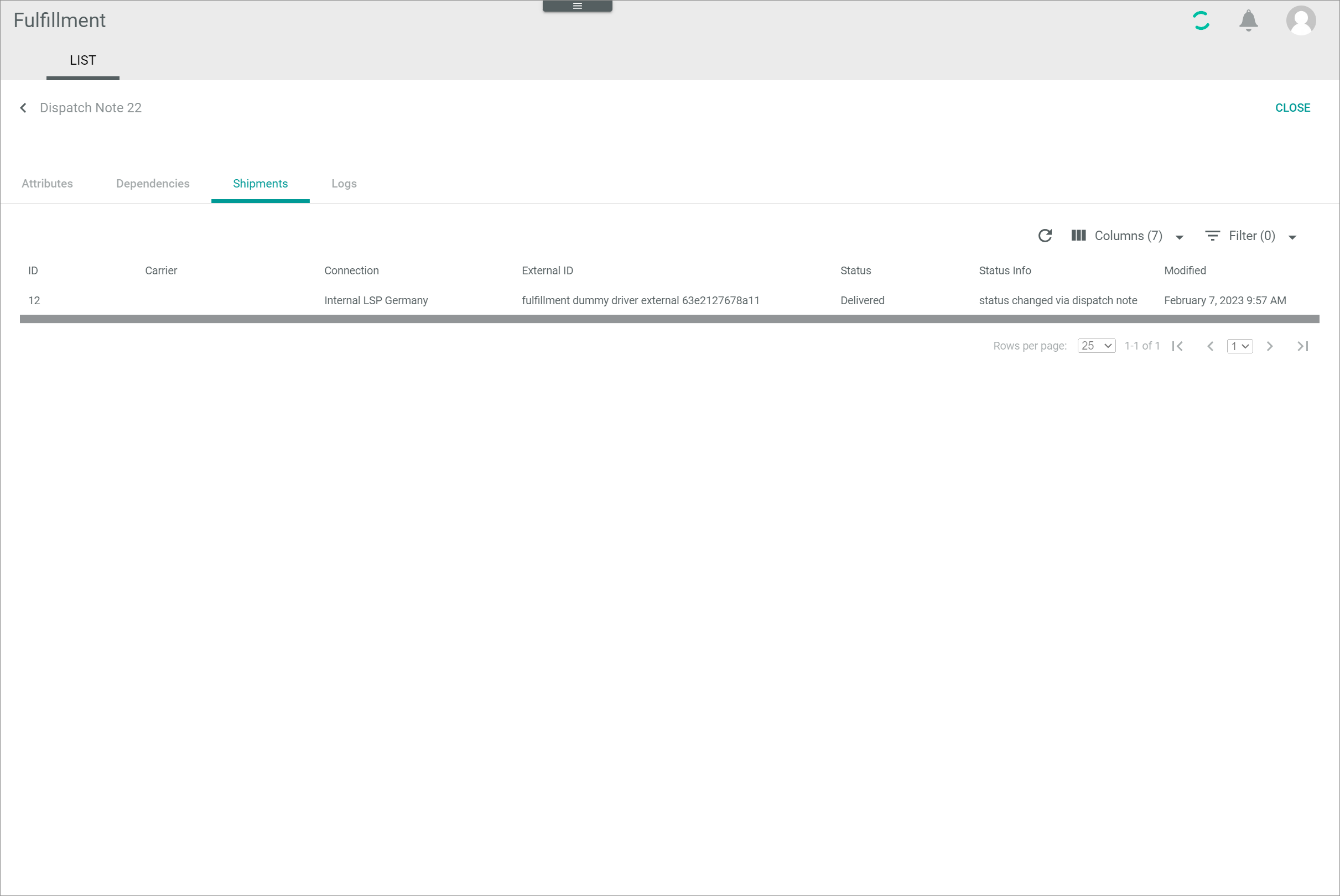
The list displays all shipments. Depending on the settings, the displayed columns may vary. All fields are read-only.
-
ID
Shipment identification number. The ID number is automatically assigned by the system. -
Carrier
Carrier identifier. -
Connection
Connection to fulfiller. -
External ID
Shipment identification number in the fulfiller's system. -
Status
Shipment status. The following options are available:- New shipment
- Shipped
- Delivered
- Void
- Error
- Packed
-
Status info
Additional status information provided by the fulfiller. -
Created
Date and time of the creation. -
Modified
Date and time of the last modification. - "Attribute name"
You can add a column for each attribute that is assigned to the shipment. The column displays the attribute name, the row displays the corresponding attribute value of the shipment.
Shipment attributes
Fulfillment > Dispatch notes > Tab LIST > Select a dispatch note > Tab Shipments > Select a shipment > Sub-tab ATTRIBUTES
Shipment "Shipment ID"
- [BACK]
Click this button to close the Shipment "Shipment ID" view and return to the list of shipments. All changes are rejected.
Shipment attributes – Attributes
Fulfillment > Dispatch notes > Tab LIST > Select a dispatch note > Tab Shipments > Select a shipment > Sub-tab ATTRIBUTES > Tab Attributes
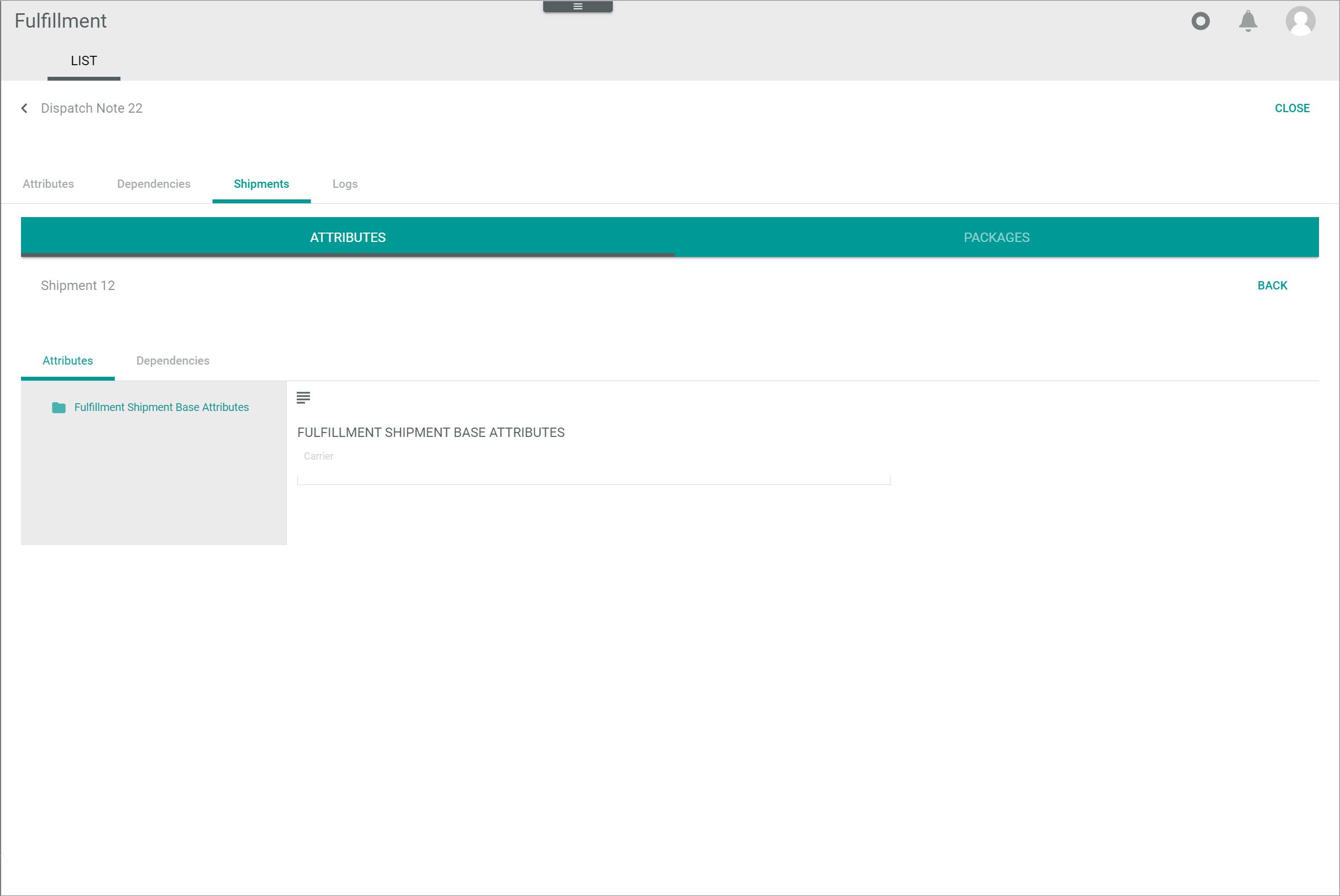
In the left margin column, all available attribute groups are displayed. Click a group to display the attributes that are assigned to this group on the right side of the Attributes tab. If the shipment contains attributes that are unassigned, the Unassigned group attribute group is automatically displayed in the left margin column.
-
(Folders)
Attribute group that contains attribute sub-groups. Click the attribute group or the arrow left to the attribute group to unfold the group and display the attribute sub-groups. - (Folder)
Attribute group. Click the attribute group to display all attributes that are assigned to the selected attribute group on the right side of the Attributes tab.
The right side of the Attributes tab displays all attributes that are assigned to the selected group in the left margin column. Depending on the selected attribute group, the displayed fields may vary. All fields are read-only.
- (Collapse/Expand)
Click this button to collapse or expand the left margin column with the attribute groups. When the left margin is expanded and you click this button, the column is collapsed. When the column is collapsed and you click this button, the column is expanded.
Shipment attributes – Dependencies
Fulfillment > Dispatch notes > Tab LIST > Select a dispatch note > Tab Shipments > Select a shipment > Sub-tab ATTRIBUTES > Tab Dependencies
-
(Refresh)
Click this button to update the list of shipment dependencies. -
Columns (x)
Click this button to display the columns bar and customize the displayed columns and the order of columns in the list. The x indicates the number of columns that are currently displayed in the list.
Select the checkbox to display the editing toolbar. If you click the checkbox in the header, all dependent entities in the list are selected.
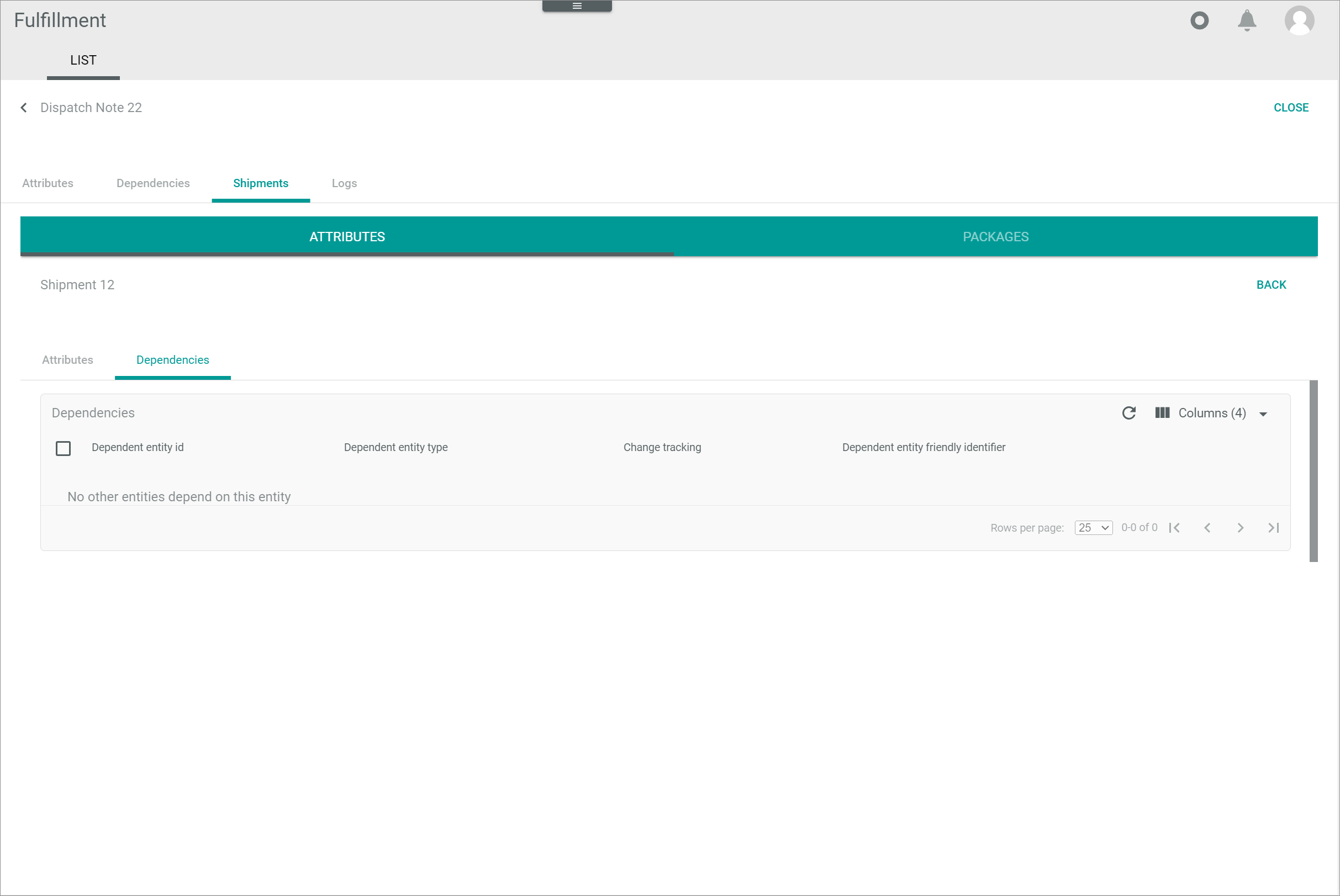
The list displays all dependencies of the selected shipment. Depending on the settings, the displayed columns may vary. All fields are read-only.
If no dependent entities exist, the No other entities depend on this entity notice is displayed.
-
Dependent entity ID
Identification number of the dependent entity. The ID number is automatically assigned by the system. -
Dependent entity type
Type of the dependent entity. -
Change tracking mode
Change tracking mode (ETL mode) of the dependent entity. The following options are available:- Manual
- Semiautomatic
- Semiautomatic, changes must be confirmed by another user
- Automatic
-
Dependent entity friendly identifier
Further, more descriptive identifier of the dependent entity, for instance a reference number or an SKU. - [RERUN MAPPING]
Click this button to rerun the mapping of the selected entity. This button is only displayed if the checkbox of at least one dependency is selected.
Shipment packages
Fulfillment > Dispatch notes > Tab LIST > Select a dispatch note > Tab Shipments > Select a shipment > Sub-tab PACKAGES
-
(Search)
Click this button to display the search bar and search for packages. -
(Refresh)
Click this button to update the list of packages. -
Columns (x)
Click this button to display the columns bar and customize the displayed columns and the order of columns in the list. The x indicates the number of columns that are currently displayed in the list. - Filter (x)
Click this button to display the filter bar and customize the active filters. The x indicates the number of filters that are currently active.
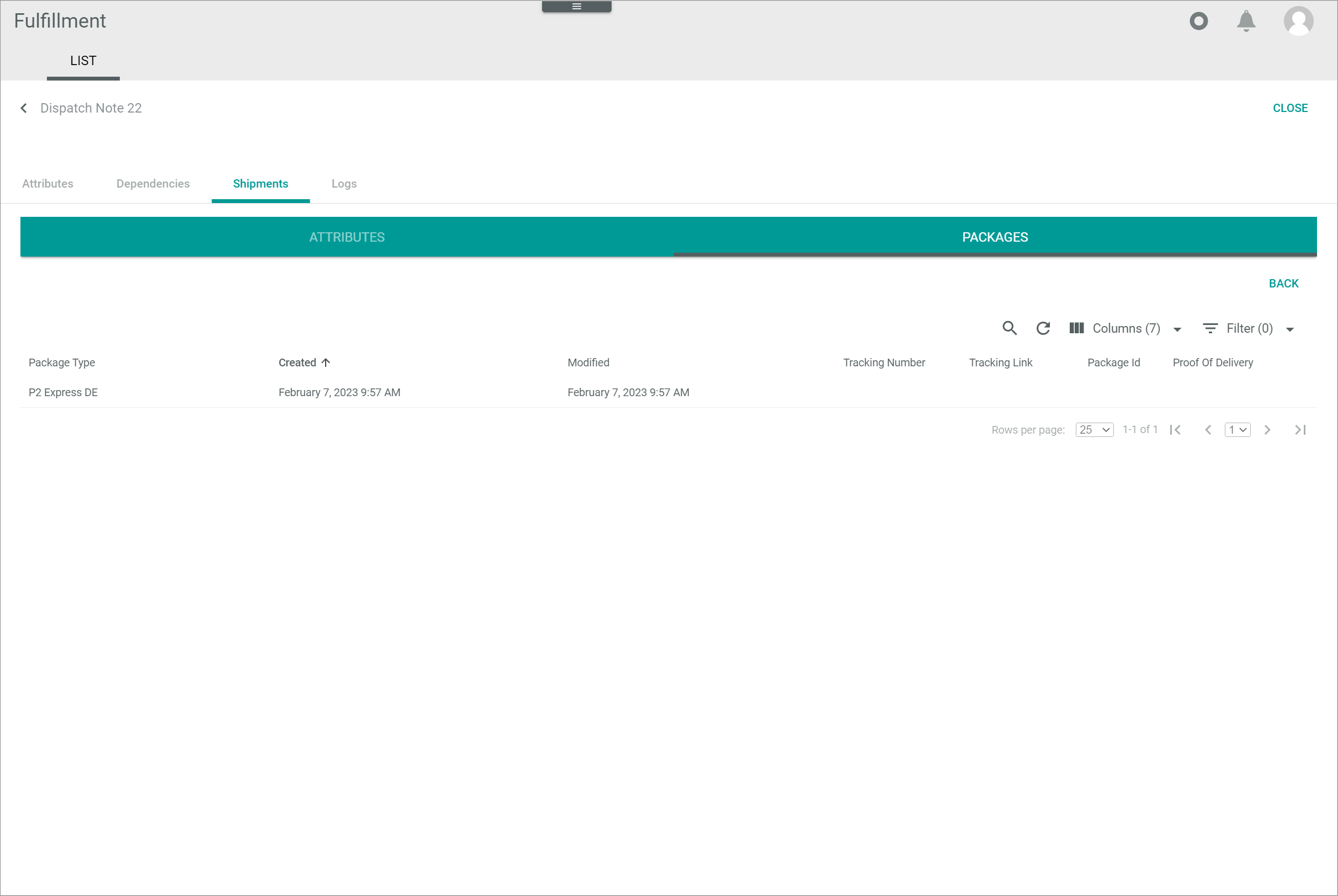
The list displays all packages contained in the selected shipment. Depending on the settings, the displayed columns may vary. All fields are read-only.
-
Packaging type
Packaging type name. Packaging types can be defined in the PACKAGING TYPES tab of the Settings menu entry, see Manage the packaging types. -
Created
Date and time of the creation. -
Modified
Date and time of the last modification. -
ID
Packaging type identification number. This number is automatically assigned by the system. -
Tracking number
Package tracking number. -
Tracking link
Package tracking link. -
Package ID
Package identification number. This identifier is provided by the fulfiller. -
Proof of delivery
Proof of delivery in the form of link leading to the relevant data, such as a photo of the delivery location or a signed delivery receipt. - "Attribute name"
You can add a column for each attribute that is assigned to the shipment package. The column displays the attribute name, the row displays the corresponding attribute value of the shipment package.
Items
Fulfillment > Dispatch notes > Tab LIST > Select a dispatch note > Tab Shipments > Select a shipment > Sub-tab PACKAGES > Select a package
-
(Refresh)
Click this button to update the list of items. -
Columns (x)
Click this button to display the columns bar and customize the displayed columns and the order of columns in the list. The x indicates the number of columns that are currently displayed in the list. - Filter (x)
Click this button to display the filter bar and customize the active filters. The x indicates the number of filters that are currently active.
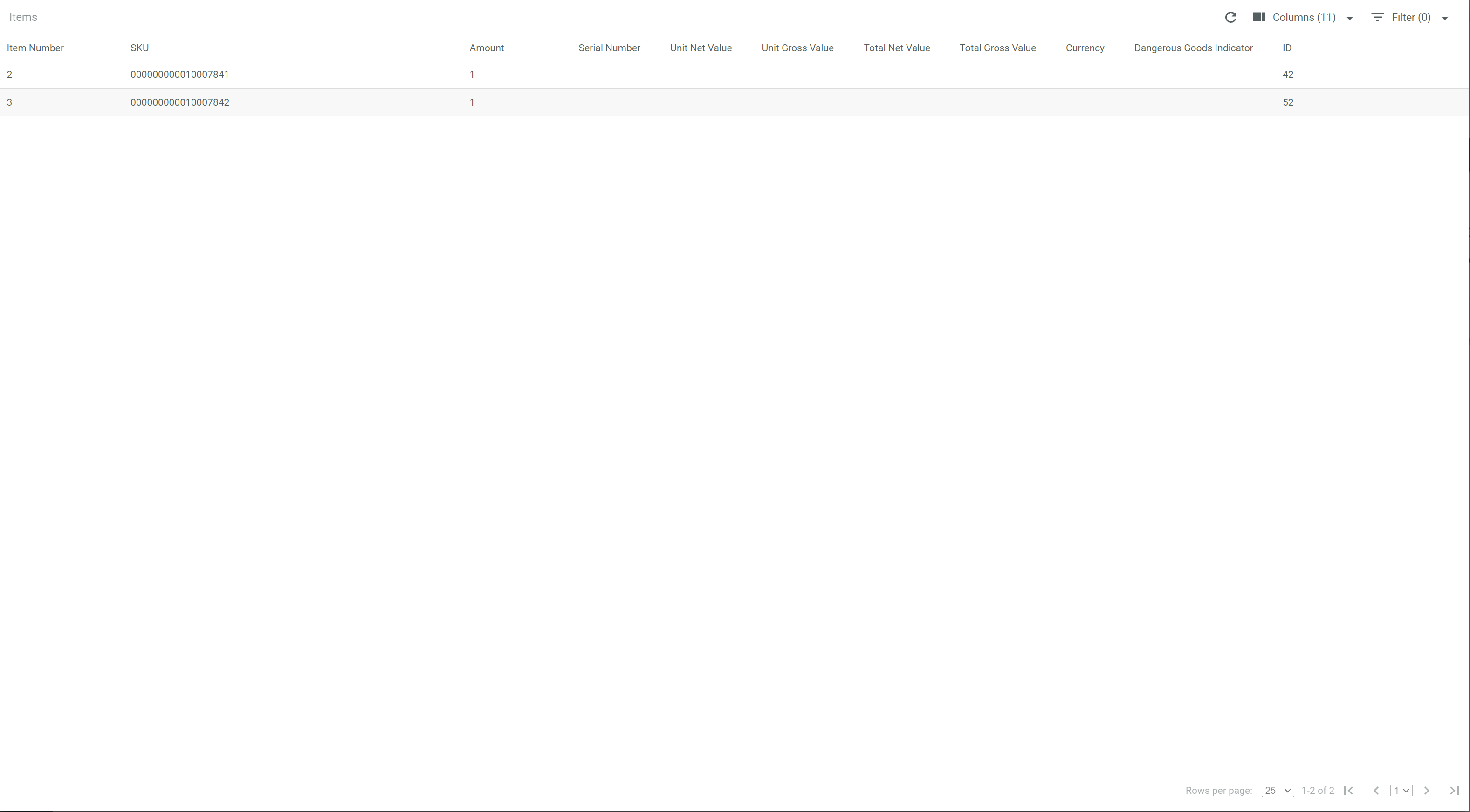
The list displays all items contained in the selected package. Depending on the settings, the displayed columns may vary. All fields are read-only.
-
Item number
Item number in the package. -
SKU
Stock Keeping Unit. Identification number of the item. -
Amount
Amount of item units contained in the package. -
Serial number
Item serial number. -
ID
Item identification number. The ID number is automatically assigned by the system. -
Unit net value
Item unit net value. -
Unit gross value
Item unit gross value. -
Total net value
Item total net value. -
Currency
Item currency. -
Dangerous goods indicator
Indication whether the item has been classified as a dangerous product. - "Attribute name"
You can add a column for each attribute that is assigned to the item. The column displays the attribute name, the row displays the corresponding attribute value of the item.
Dispatch note – Logs
Fulfillment > Dispatch notes > Tab LIST > Select a dispatch note > Tab Logs
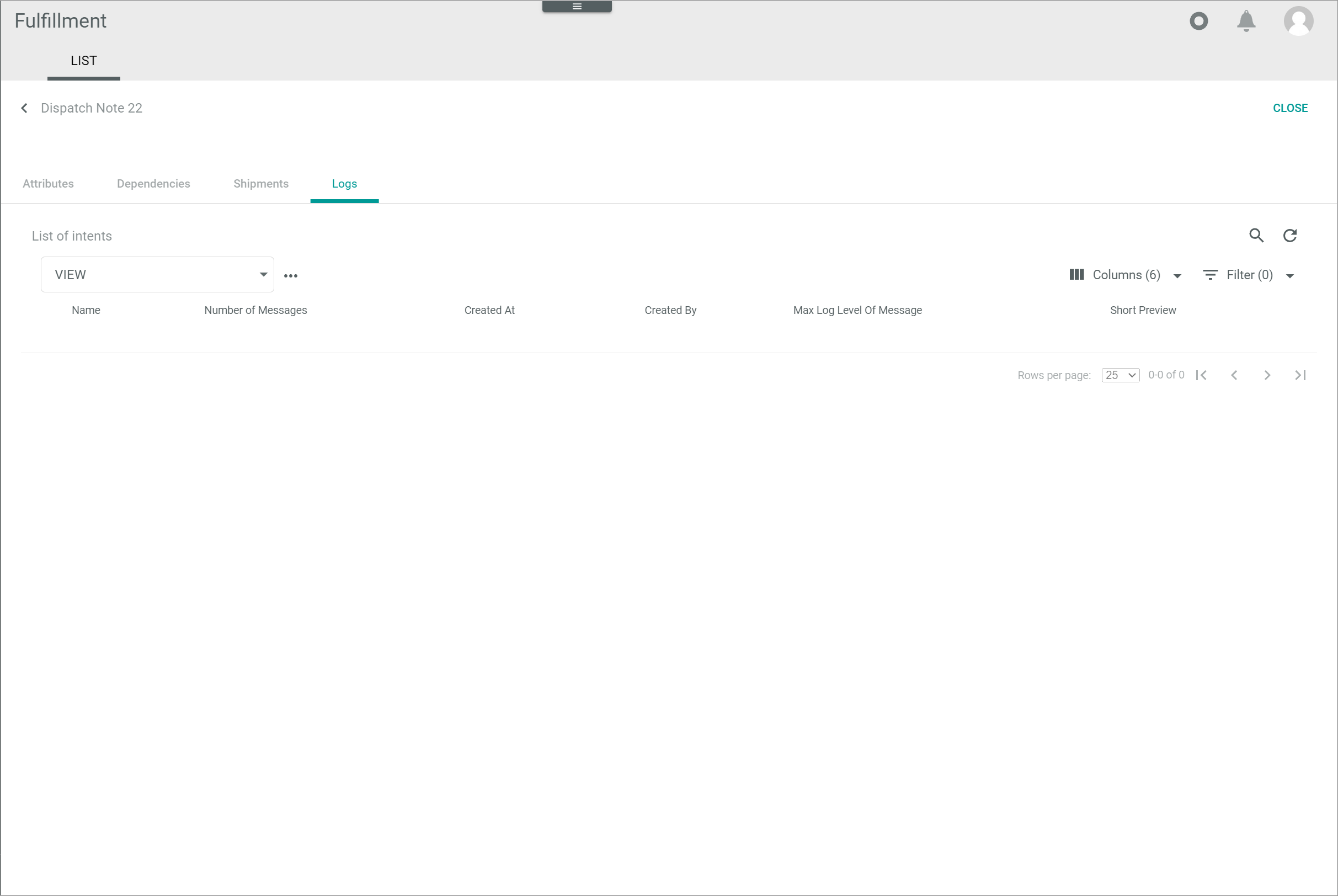
This tab displays an extract from the list of intents contained in the CONNECTIONS tab of the Logging menu entry. The intents displayed in this tab refer to the selected dispatch note. For a detailed description of this window and the corresponding functions, see Connections (Logging).
Create view
Fulfillment > Dispatch notes > Tab LIST > Button Points > Menu entry create
-
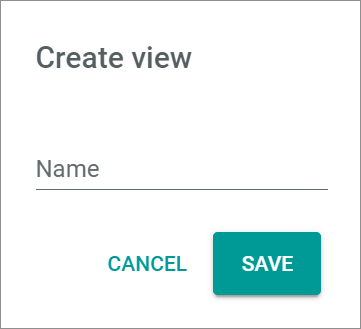
Name
Enter a name for the view. -
[CANCEL]
Click this button to cancel creating a view. The Create view window is closed. - [SAVE]
Click this button to save the new view and display it in the VIEW drop-down list. The Create view window is closed.
This window can also be accessed via the following tabs in the user interface:
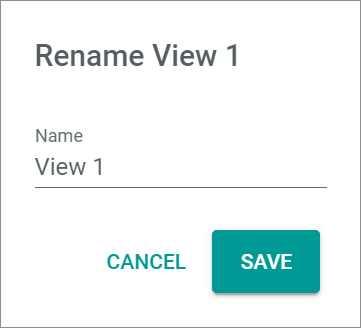
Rename view
Fulfillment > Dispatch notes > Tab LIST > Button Points > Menu entry rename
-
Name
Click this field to edit the view name. -
[CANCEL]
Click this button to cancel renaming the view. The Rename view window is closed. - [SAVE]
Click this button to save the changes and display it in the VIEW drop-down list. The Rename view window is closed.
This window can also be accessed via the following tabs in the user interface: