

Manage the packaging types
Packaging types serve as a suggestion for the fulfiller on the type of packaging and the preferred carrier that may apply for a shipment. Packaging types can be defined using many different criteria. All relevant attributes that are used are mapped via ETL from the relevant business document depending on the fulfiller's driver.
Create a packaging type
Create a packaging type to define the criteria applicable to a shipment.
Prerequisites
At least one connection has been established, see Create a connection.
Procedure
Fulfillment > Settings > Tab PACKAGING TYPES
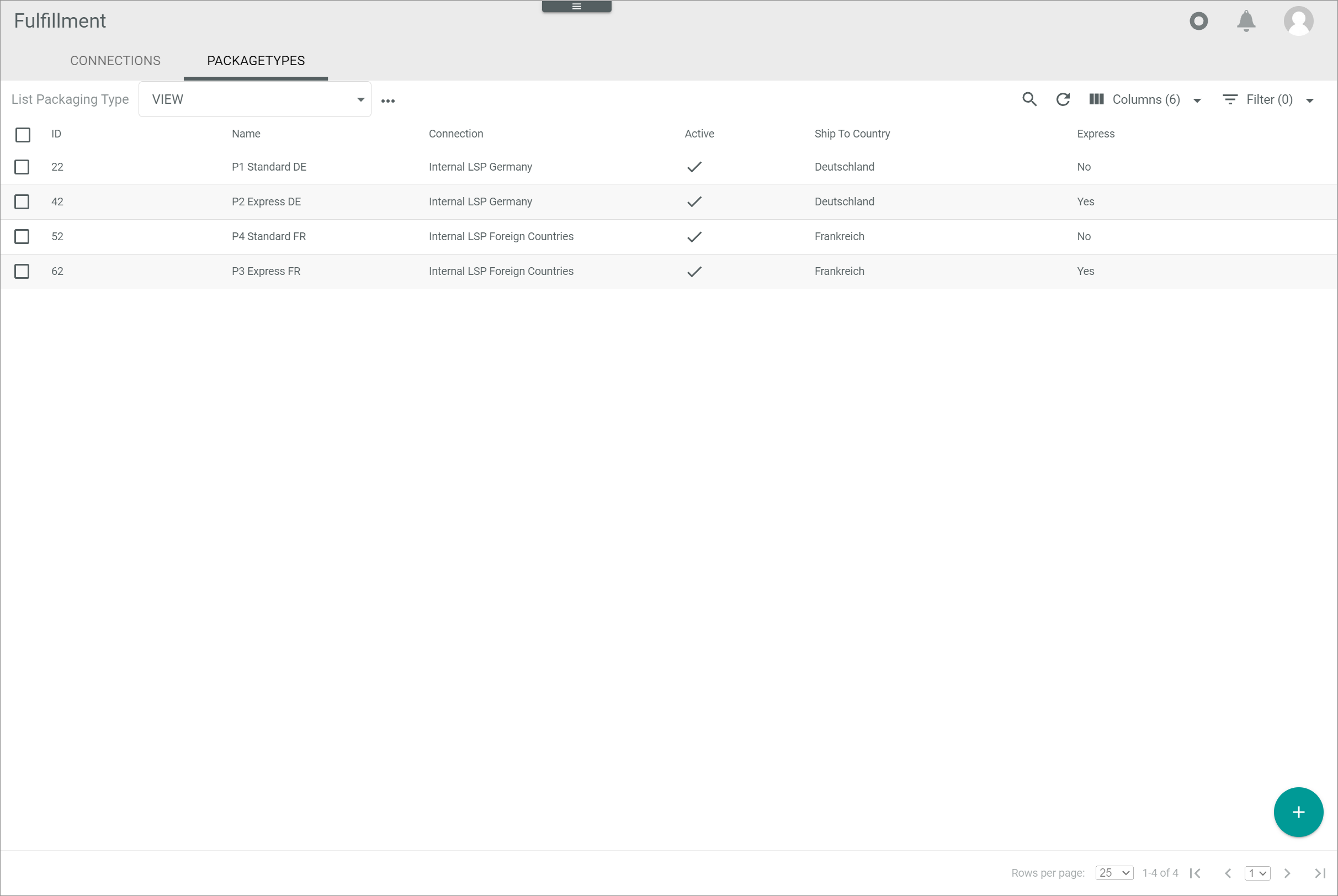
-
Click the
 (Add) button in the bottom right corner.
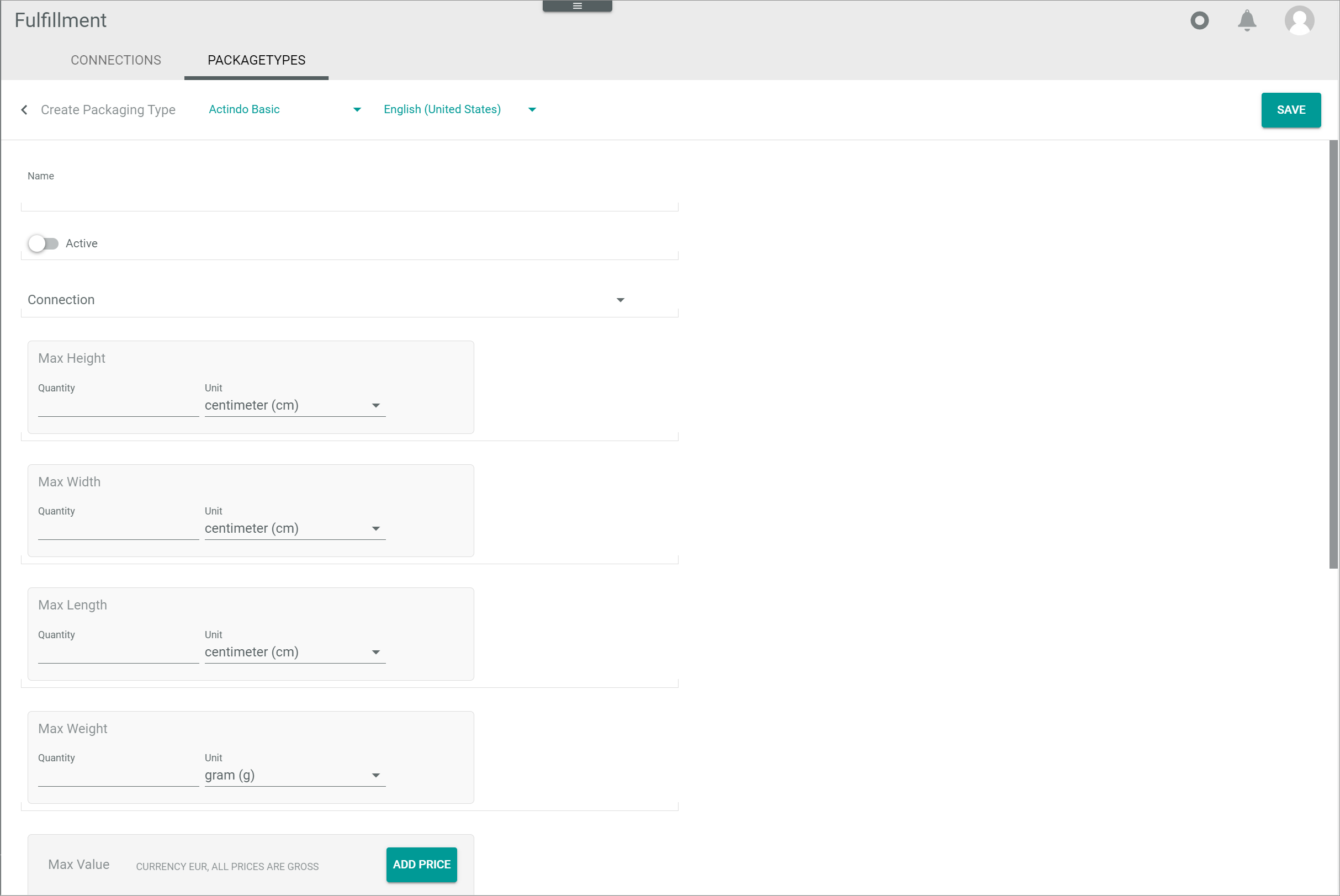
The Create packaging type view is displayed.The fields displayed depend on the fulfiller's driver and may therefore differ from those described below.
-
Enter a name for the connection in the Name field.
-
If necessary, click the Language drop-down list to select the language. All languages that are active in Data-Hub module are displayed.
Additional languages can be added in the DataHub module, see Create a language.
-
Enable the Active toggle to set the packaging type status to active after creation. By default, this toggle is disabled.
The packaging type must be activated to be used.
-
Click the Connection drop-down list and select the applicable connection. All available connections are displayed in the list.
-
Enter the maximum dimensions allowed for the packaging type:
-
In the Max height box, enter the maximum value in the Quantity field and click the Unit drop-down list to select the applicable unit.
-
In the Max width box, enter the maximum value in the Quantity field and click the Unit drop-down list to select the applicable unit.
-
In the Max length box, enter the maximum value in the Quantity field and click the Unit drop-down list to select the applicable unit.
- In the Max weight box, enter the maximum value in the Quantity field and click the Unit drop-down list to select the applicable unit.
-
-
Configure the maximum monetary value for the items contained in the packaging type in the Max value box by following the instructions below:
-
Click the [ADD PRICE] button.
The Edit price window is displayed.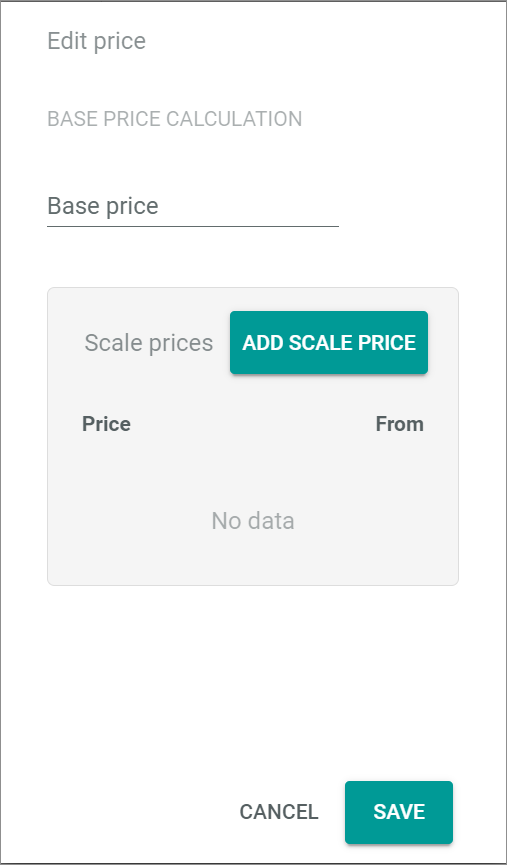
-
Enter the item price in the Base price field.
-
If desired, click the [ADD SCALE PRICE] button to add scale prices.
The Edit scale price window is displayed.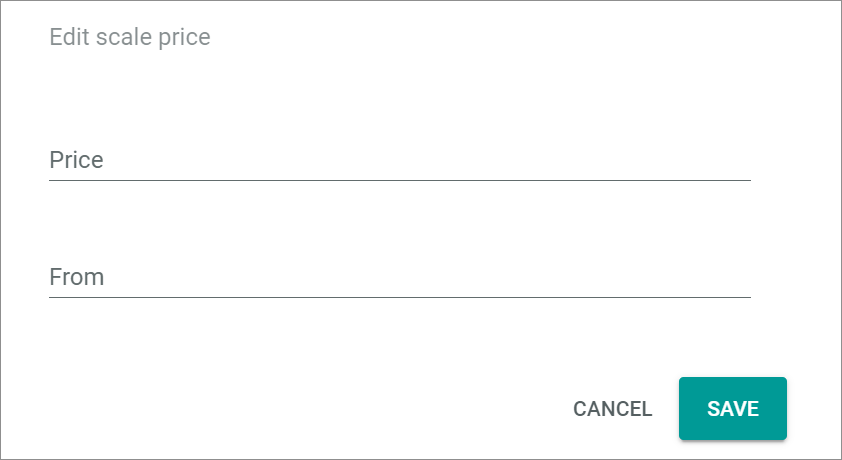
-
Enter the scale price in the Price field and the applicable number of units in the From field.
-
Click the [SAVE] button at the bottom of the Edit scale price window.
The Edit scale price window is closed. The scale prices are displayed in the Scale prices box in the Edit price window. Repeat this process to add further scale prices. - Click the [SAVE] button at the bottom of the Edit price window.
The Edit price window is closed. The entered prices are displayed in the Max value box.
-
-
Enter the carrier identifier in the Carrier field. Both letters and numbers can be entered.
-
Enable the Express toggle if express delivery applies for the shipment. For standard delivery, leave the toggle disabled. By default, this toggle is disabled.
-
Enter the applicable packaging type identifier in the Packaging type identifier field. Both letters and numbers can be entered.
-
Click the Ship-to country drop-down list and select the country where the shipment is to be sent to.
-
Enter the applicable priority value in the Priority field. This field is mandatory.
The priority value is used by the system to determine the packaging type for a shipment when the criteria of two or more packaging types match. The priority value then becomes the decisive criterion. In the priority scale, the lower the number, the higher the priority, that is, priority 1 is higher than priority 4.
-
Enter the additional services offered in the Shipping method field. Both letters and numbers can be entered.
-
Click the [SAVE] button in the upper right corner.
The Submitting data... notice is displayed. The Create packaging type view is automatically closed when the packaging type has been created and the Creation successful pop-up window is displayed. The List of packaging types is displayed again.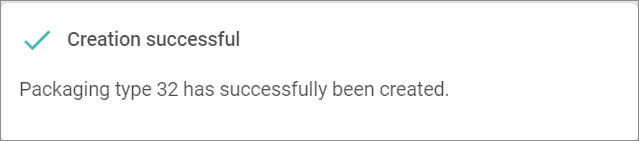
- If necessary, click the
 (Refresh) button in the upper right corner to update the list of packaging types. The new packaging type is displayed in the list.
Edit a packaging type
Edit a packaging type to update any settings.
Prerequisites
At least one packaging type has been created, see Create a packaging type.
Procedure
Fulfillment > Settings > Tab PACKAGING TYPES
-
Click the packaging type to be edited.
The Edit packaging type view is displayed. -
Edit the desired data of the packaging type in the corresponding fields.
-
Click the [SAVE] button.
The Submitting data... notice is displayed. The Create packaging type view is automatically closed when the packaging type has been created and the Creation successful pop-up window is displayed. The List of packaging types is displayed again.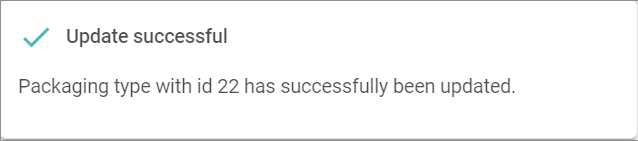
The Edit packaging type view is closed and the List of packaging types is displayed again.
- If necessary, click the (Refresh) button in the upper right corner to update the list of packaging types.
Delete a packaging type
Delete a packaging type that is no longer applicable. To avoid issues with existing shipments, it is highly recommended to deactivate a packaging type instead of deleting it, see Deactivate a packaging type.
Prerequisites
At least one packaging type has been created, see Create a packaging type.
Procedure
Fulfillment > Settings > Tab PACKAGING TYPES
-
Click the checkbox of the packaging type to be deleted.
The editing toolbar is displayed.Deleting will permanently remove the selected data. The deletion cannot be undone and the deleted data cannot be restored. Problems may occur due to unresolved dependencies.
- Click the [DELETE] button.
The selected packaging type is deleted and removed from the list of packaging types.
Deactivate a packaging type
Deactivate a packaging type, so that it can not be used.
Prerequisites
At least one packaging type has been created, see Create a packaging type.
Procedure
Fulfillment > Settings > Tab PACKAGING TYPES
-
Click the packaging type to be deactivated.
The Edit packaging type view is displayed. -
Disable the Active toggle.
-
Click the [SAVE] button.
The Submitting data... notice is displayed. The Create packaging type view is automatically closed when the packaging type has been created and the Creation successful pop-up window is displayed. The List of packaging types is displayed again. - If necessary, click the (Refresh) button in the upper right corner to update the list of packaging types.
Activate a packaging type
A packaging type can only be used if it is active. If a packaging type has been deactivated, it can be reactivated again when it is needed.
Prerequisites
At least one packaging type has been deactivated, see Deactivate a packaging type.
Procedure
Fulfillment > Settings > Tab PACKAGING TYPES
-
Click the packaging type to be activated.
The Edit packaging type view is displayed. -
Enable the Active toggle.
-
Click the [SAVE] button.
The Submitting data... notice is displayed. The Create packaging type view is automatically closed when the packaging type has been created and the Creation successful pop-up window is displayed. The List of packaging types is displayed again. - If necessary, click the (Refresh) button in the upper right corner to update the list of packaging types.