

Posting history
Warehousing > Quick posting > Tab POSTING HISTORY
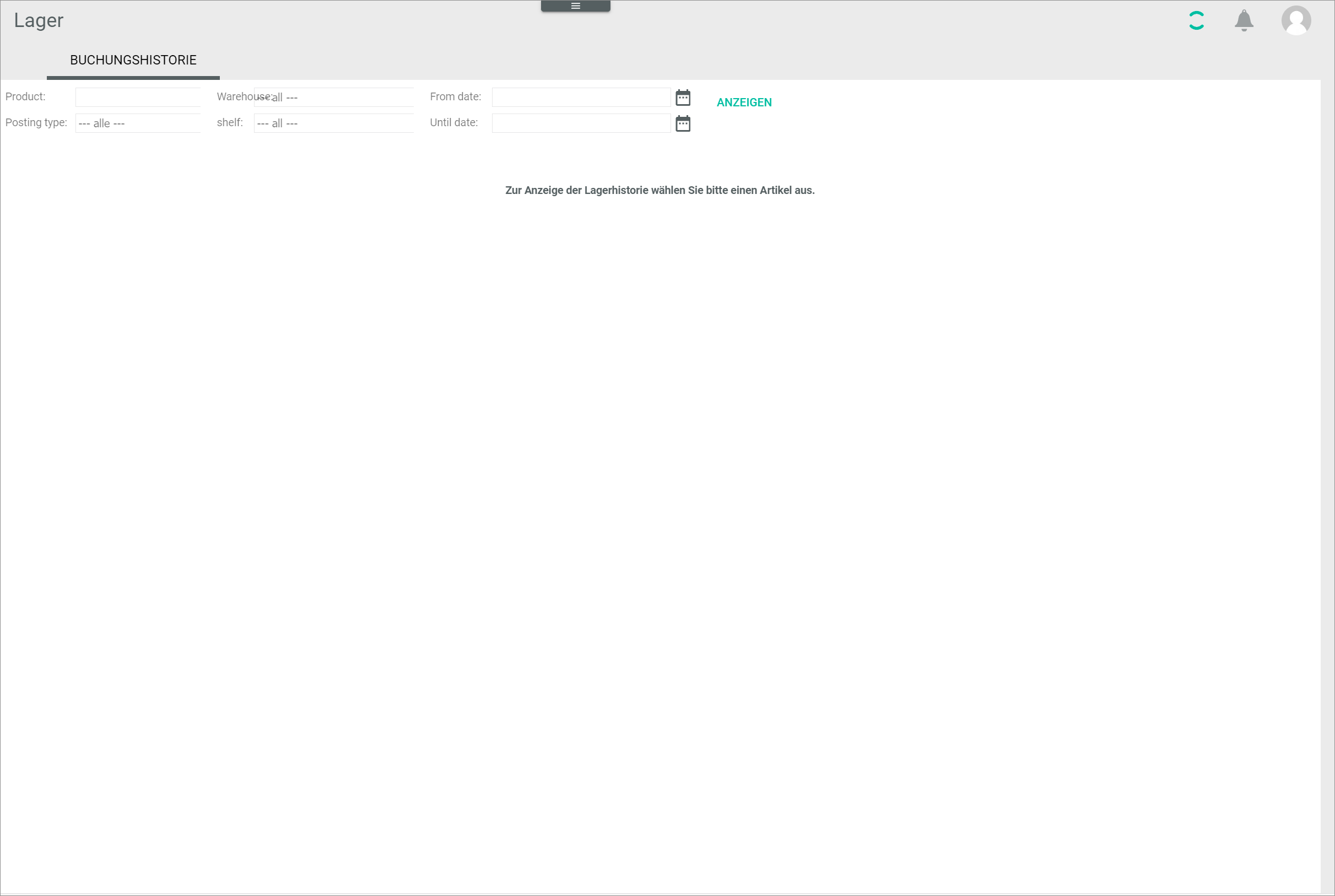
The Posting history tab allows you to check the stock postings for a specific material and to filter all stock postings according to different criteria. Since all stock postings ever performed are stored in the system, a huge number of entries is available. To reduce system overload and improve performance, no posting is displayed before setting a filter.
The list displayed when filtering by product is similar to the one displayed in the Stock history sub-tab of the Warehouse/suppliers tab in the Quick posting menu entry.
The following filters are available:
-
Product
Enter the product SKU or name to search for the stock posting for a specific material. -
Posting type
Click the drop-down list and select the posting type you would like to display. The following options are available:- Manual posting
- Reservation
- Waiting for picking
- Sale
- Order
- Purchase
- Back to supplier
- Stock adjustment posting
- Stock transfer
- Return
- Drop shipment
- Problem
- Pre-reservation
For detailed information on the different posting types, see (./04_PostingTypes.md).
-
Warehouse
Click the drop-down list and select the desired warehouse. All available warehouses are displayed in the list. -
Storage shelf
Click the drop-down list and select the desired storage shelf. All available storage shelves are displayed in the list. -
From date / Until date
Click the field(s) to enter the desired date or date range. Alternatively, click the (Calendar) button to select a date.
- [DISPLAY]
Click this button to display the posting history according to the filter criteria.
Results list
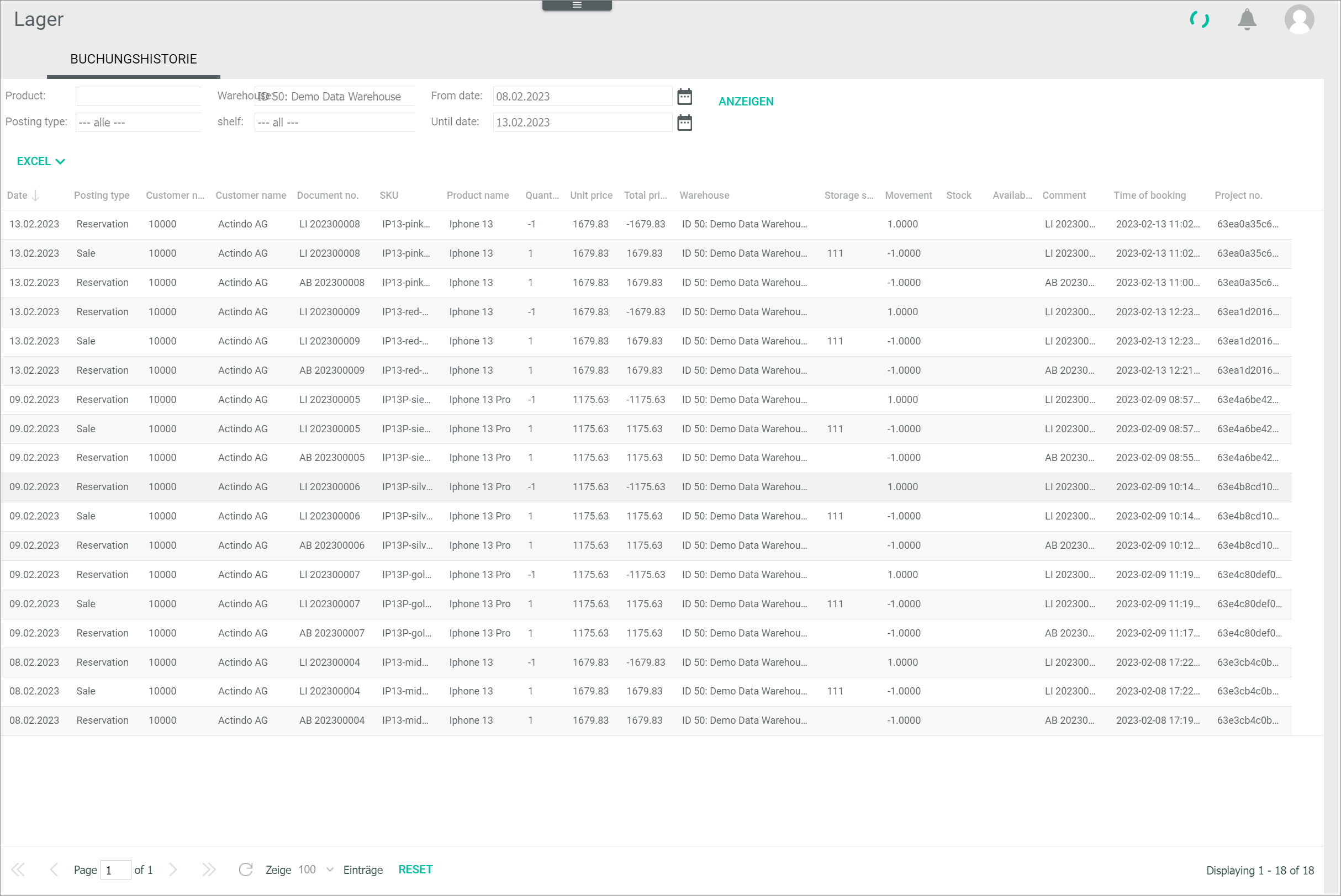
The list displays all postings according to the selected criteria. Depending on the settings, the displayed columns may vary. All fields are read-only.
-
Date
Posting date. -
Posting type
Type of posting. -
Customer no.
Customer or supplier number. This detail is only displayed in case of automatic postings. -
Customer name
Customer or supplier name. This detail is only displayed in case of automatic postings. -
Document no.
Business document number. This detail is only displayed in case of automatic postings. -
SKU
Product SKU. -
Product name
Product description. -
Quantity
Number of units posted. The signs are reserved with regards to the Movement column. -
Unit price
Price per unit for the material posted. -
Total price
Price of all units posted. -
Warehouse
Warehouse ID and name. -
Storage shelf
Storage shelf number. This detail is only displayed when an actual change in the physical stock has occurred, for example, in case of a sale posting. -
Movement
Units added (no sign) or reduced (minus sign). -
Stock
Actual physical number of units stored. -
Available
Number of units available to be sold (actual stock minus reserved units). -
Comment
Comments added to the posting. -
Time of posting
Date and time of posting. - Project no.
Order number in shop.