

Check a shipment
Once a dispatch note has been received, the fulfiller sends back a notification at every stage of the fulfillment process. The shipment status is updated accordingly in the Actindo Core1 Platform. All shipment-related details provided by the fulfiller, such as tracking number or tracking link, can be checked in the Actindo Core1 Platform.
Check the shipment status
The shipment status can be checked in the list of dispatch notes. Even though the dispatch note status and the shipment status are related, they are updated independently from each other.
Prerequisites
A dispatch note has been created.
Procedure
Fulfillment > Dispatch notes > Tab LIST
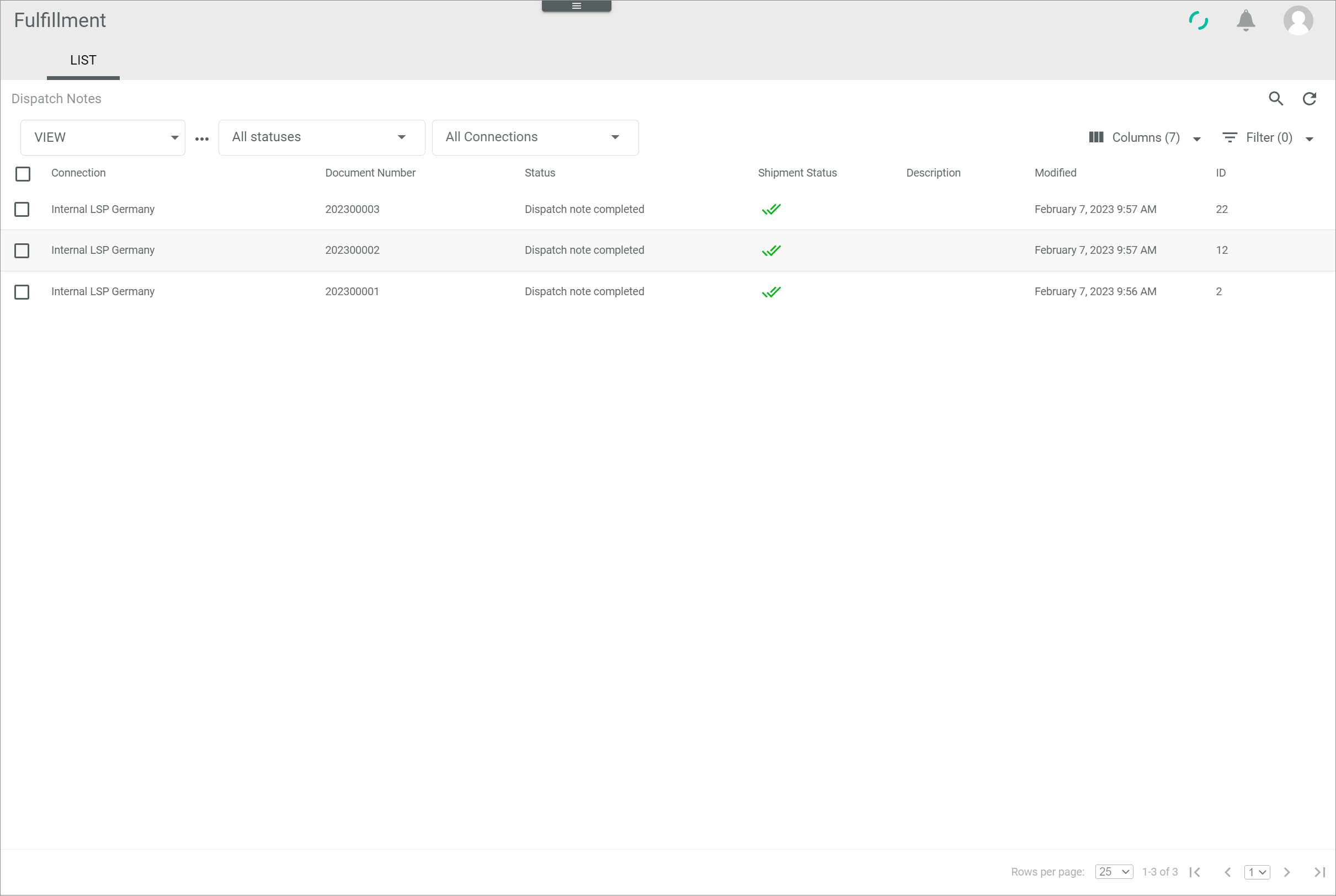
Check the shipment status in the Shipment status column. The following options are available:
 (No shipment)
No shipment has been arranged yet. (In progress)
The shipment is in progress. For more information on the specific stage of the shipment process, see Check the shipment details. (Delivered)
The shipment has been delivered. (Error)
The shipment has failed. A shipment is faulty only if the fulfiller reports an error due to a number of reasons. For detailed information, see Handle an error status.- Empty
No information on the shipment status has been received from the fulfiller.
Check the shipment details
The shipment details provided by the fulfiller can be accessed from the list of dispatch notes.
Prerequisites
The shipment status is at least (In progress) in the list of dispatch notes, see Check the shipment status.
Procedure
Fulfillment > Dispatch notes > Tab LIST
-
Click the dispatch note that contains the shipment you want to check.
The Dispatch note "Dispatch note ID" view is displayed. The Attributes tab is preselected by default.
-
Select the Shipments tab.
All shipments included in the dispatch note are displayed.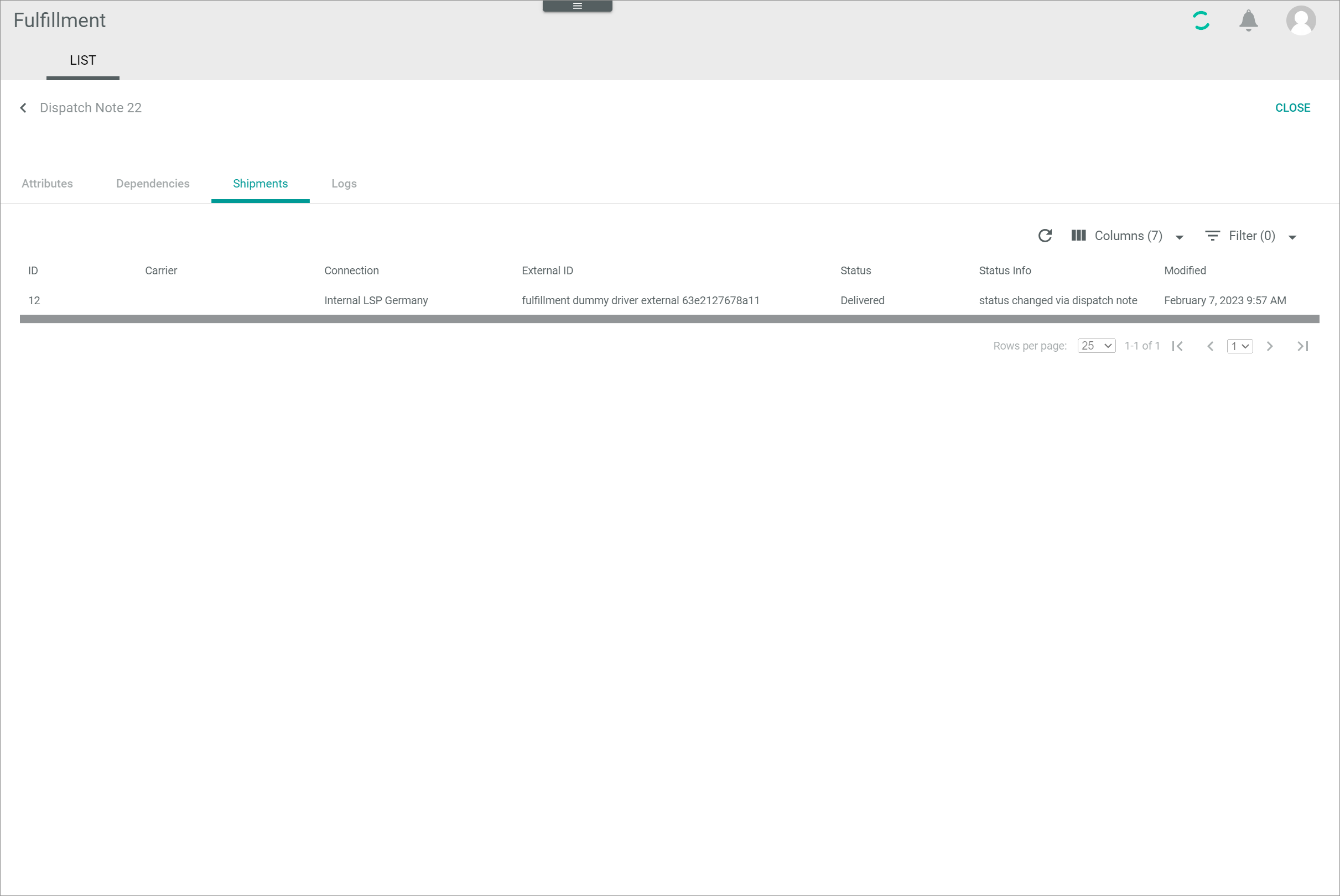
-
Click the shipment to be checked.
The Shipment "Shipment ID" view is displayed. The ATTRIBUTES sub-tab is preselected by default.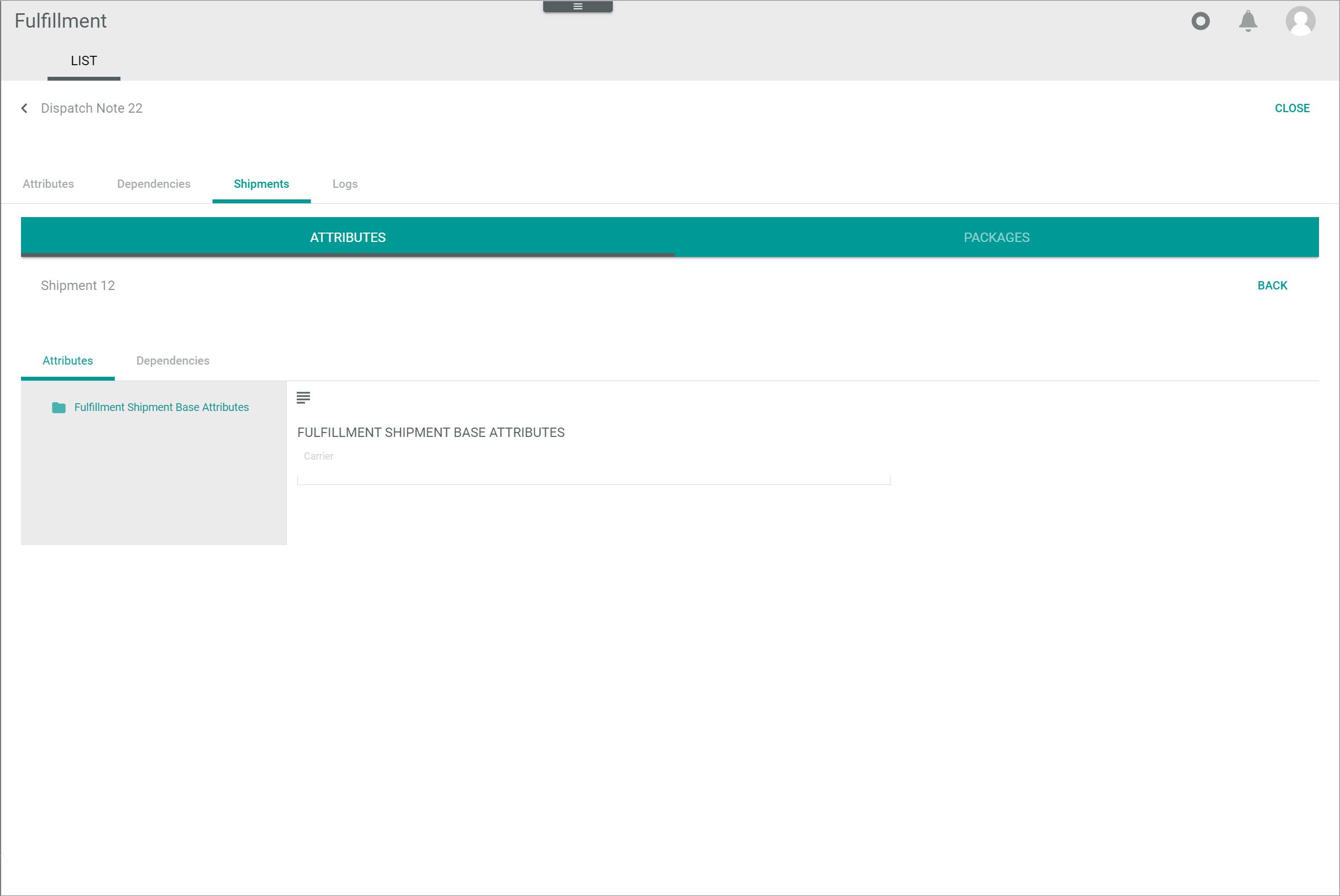
-
Select the PACKAGES sub-tab.
The package(s) included in the shipment are displayed.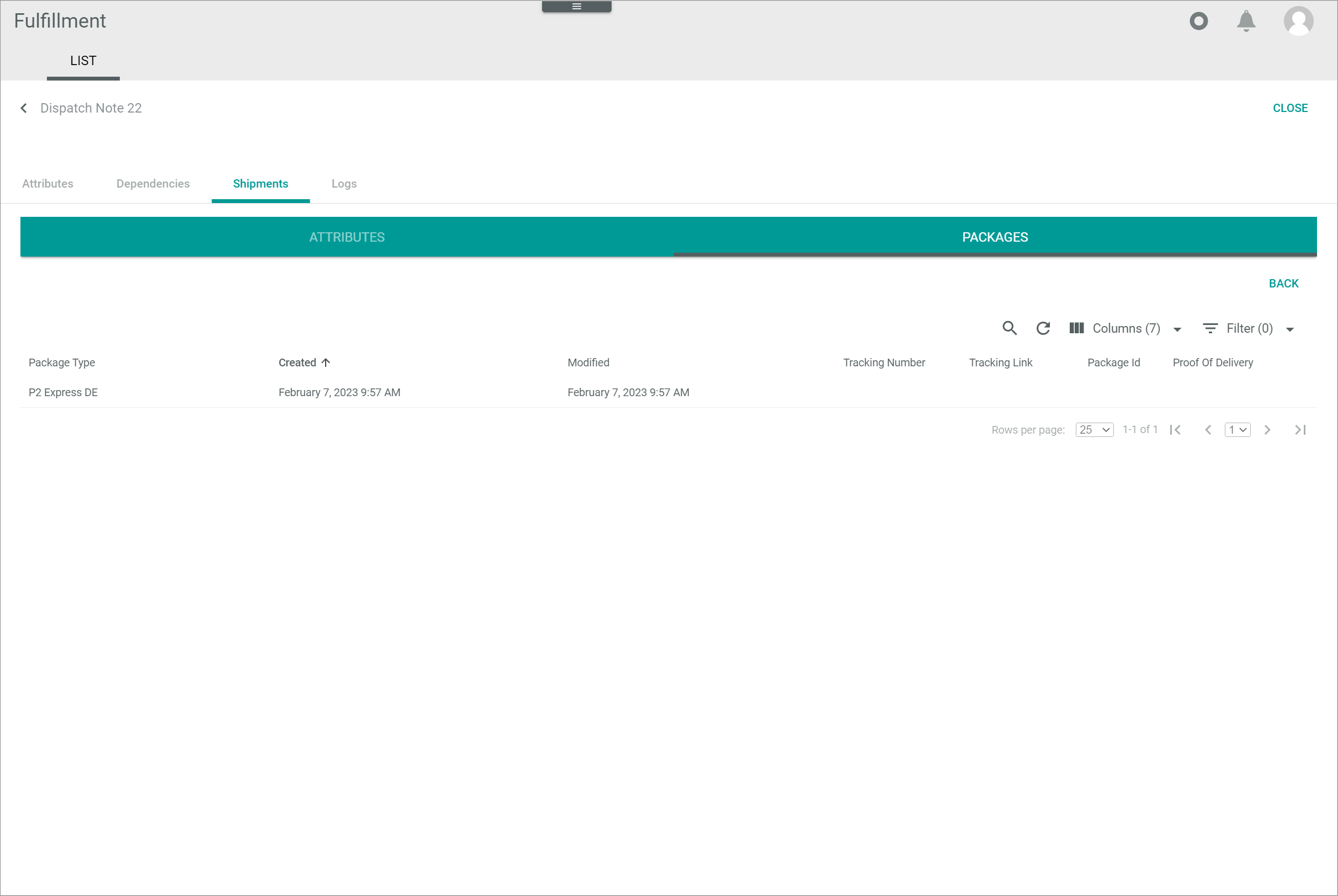
-
If desired, check the following shipment-related details:
-
Check the shipment tracking number in the Tracking number column.
- Check the URL for tracking in the Tracking link column.
The fields displayed vary depending on the fulfiller's driver.
-
-
Click a package to display the individual items contained.
The Items window is displayed.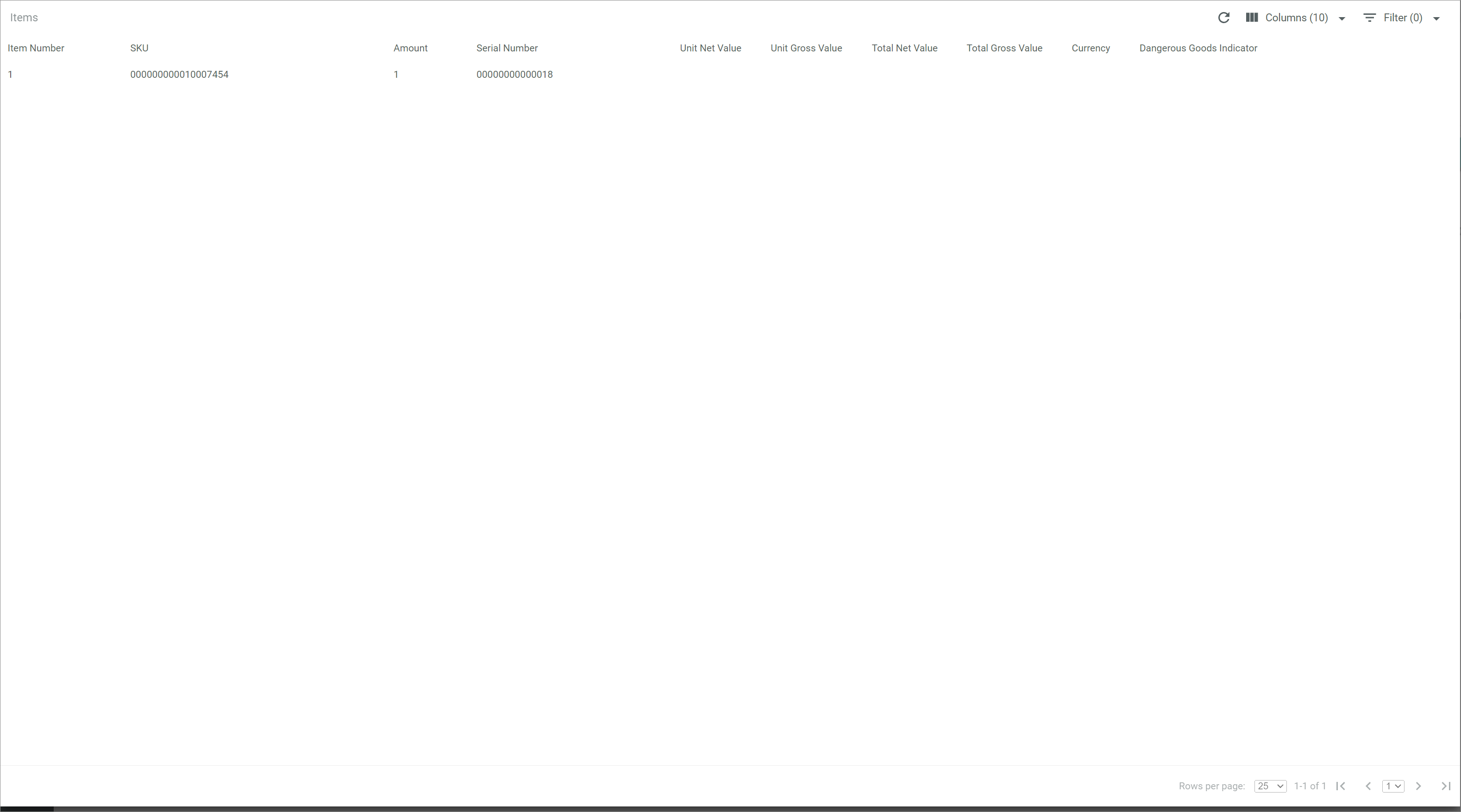
-
If desired, check the following item-related details:
-
Check the item SKU number in the SKU column. The SKU can be useful to locate a product in the PIM module and check its inventory in the Warehousing module.
-
Check the amount of an item contained in the package in the Amount column.
- Check the item serial number in the Serial number column if available.
The fields displayed vary depending on the fulfiller's driver.
-
-
Press the Esc key.
The Item window is closed and the PACKAGES tab is displayed again. -
Click the [BACK] button in the upper right corner of the PACKAGES sub-tab.
The Shipments tab is displayed again.If necessary, repeat the steps 4 to 7 to check other packages contained in the shipment.
- Click the [CLOSE] button in the upper right corner of the Dispatch note "Dispatch note ID" view.
The Dispatch note "Dispatch note ID" view is closed. The list of dispatch notes is displayed again.