

Manage BigCommerce settings
Make sure that you do not allow using multiple shipping addresses.
Manage multiple shipping addresses
Although BigCommerce allows multiple shipping addresses, Actindo supports the import of one shipping address only. Any orders that use multiple shipping addresses cannot be imported and will fail during the import.
To avoid failures during the import, you must check a specific setting in BigCommerce.
Prerequisites
- A BigCommerce connection has been created.
- You have a valid user account in BigCommerce.
Procedure
BigCommerce store > Settings
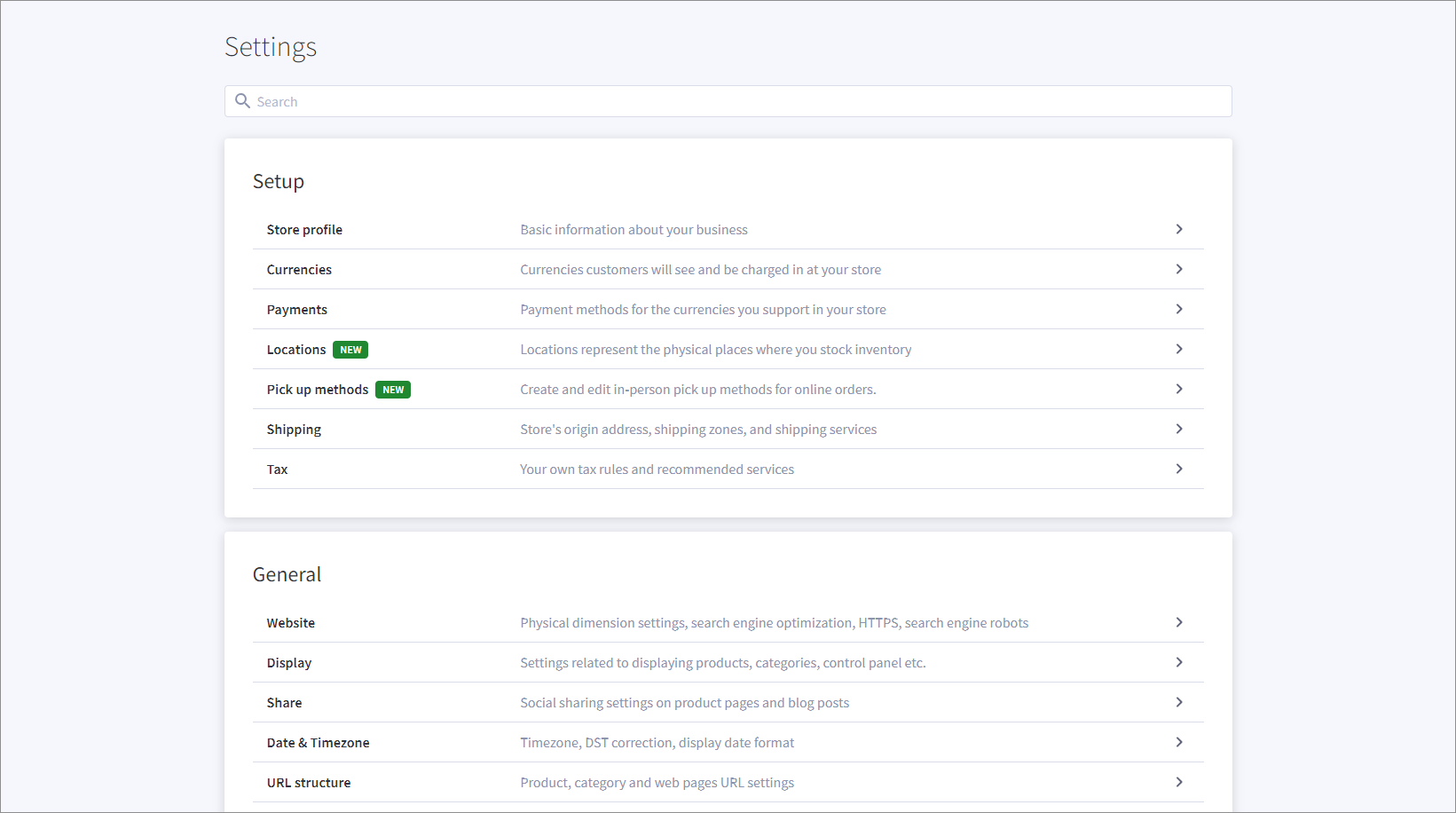
-
Display the Advanced section and click the Checkout entry.
The Advanced section is displayed.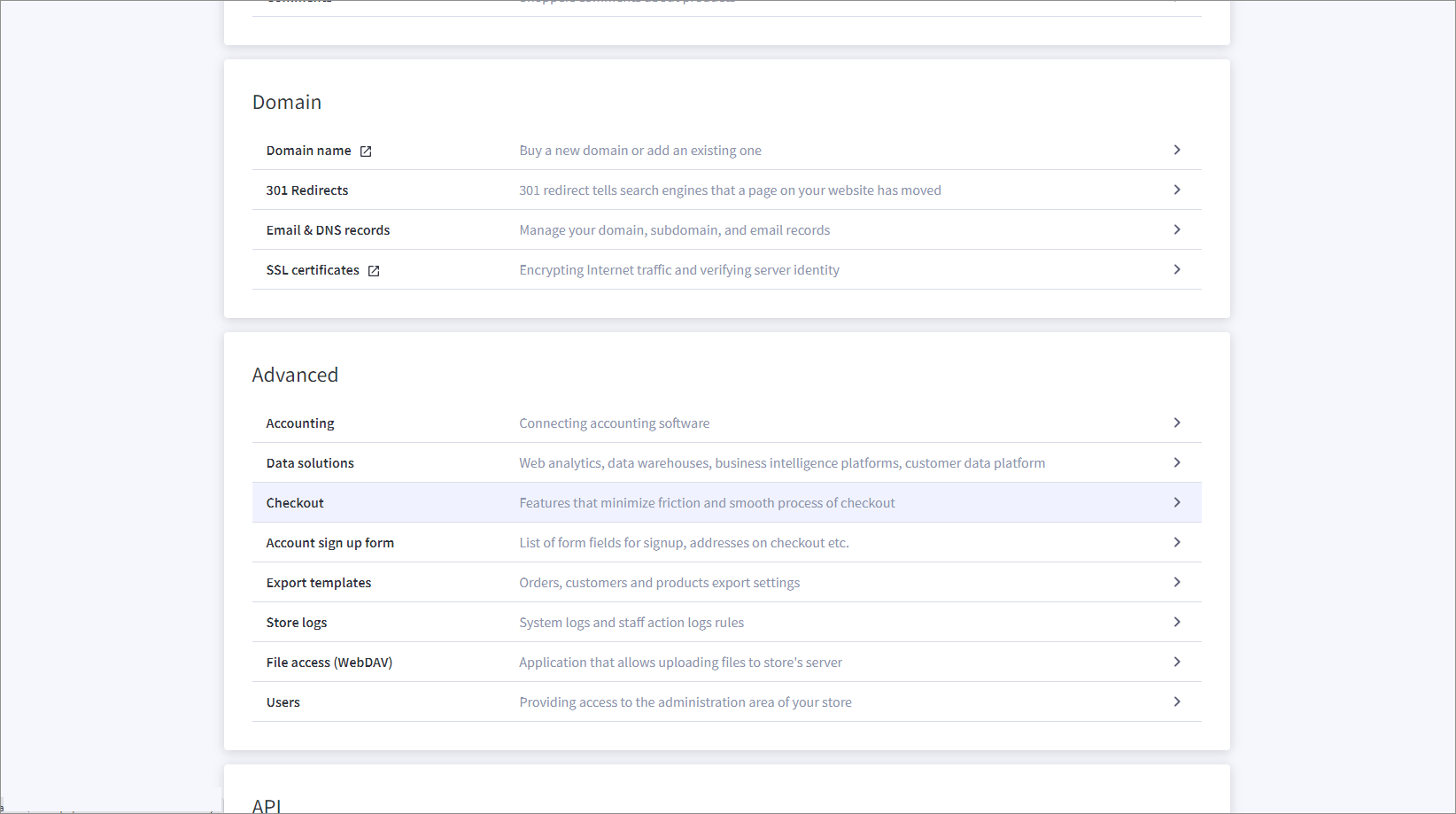
-
Display the Optimized one-page checkout settings section. The Optimized one-page checkout settings section is displayed.
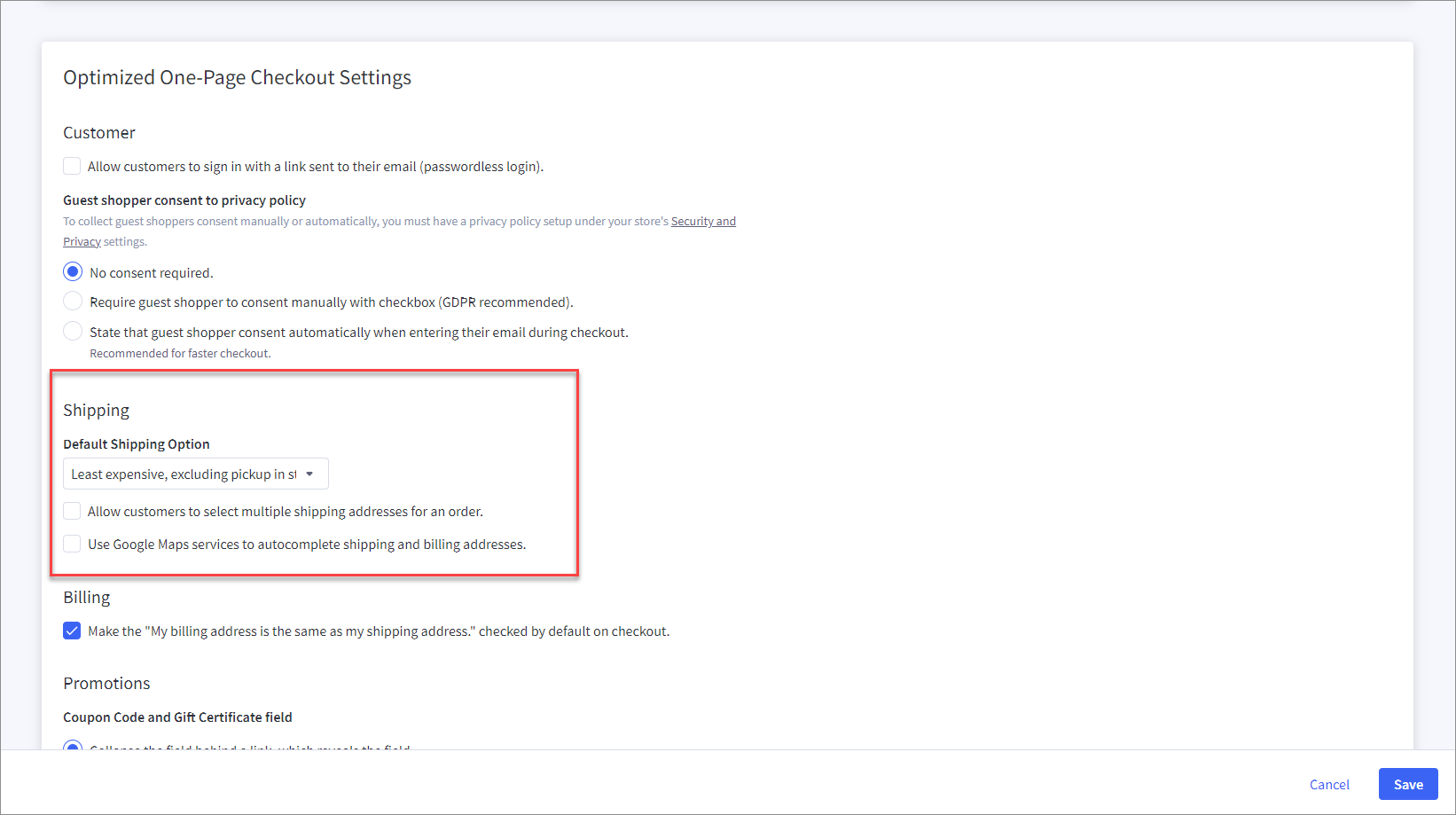
- Ensure that the Allow customers to select multiple shipping addresses for an order setting in the Shipping section is not selected.