

Manage the triggers
When designing a workflow to map a business process, the Triggers function allows the user to determine a specific model, such as a product or a dispatch note, to initiate a process. Any model, together with the occurrence of a related event, can trigger a process, for instance a product being created or a product attribute being changed. Besides, multiple conditions can be configured for a trigger to recreate all possible variants of a workflow.
You can create one or several triggers for a workflow, define conditions, edit the triggers or delete them.
Create a trigger
Create a trigger to determine a business object to initiate a process and the related event to make it executable.
Prerequisites
No prerequisites to fulfill.
Procedure
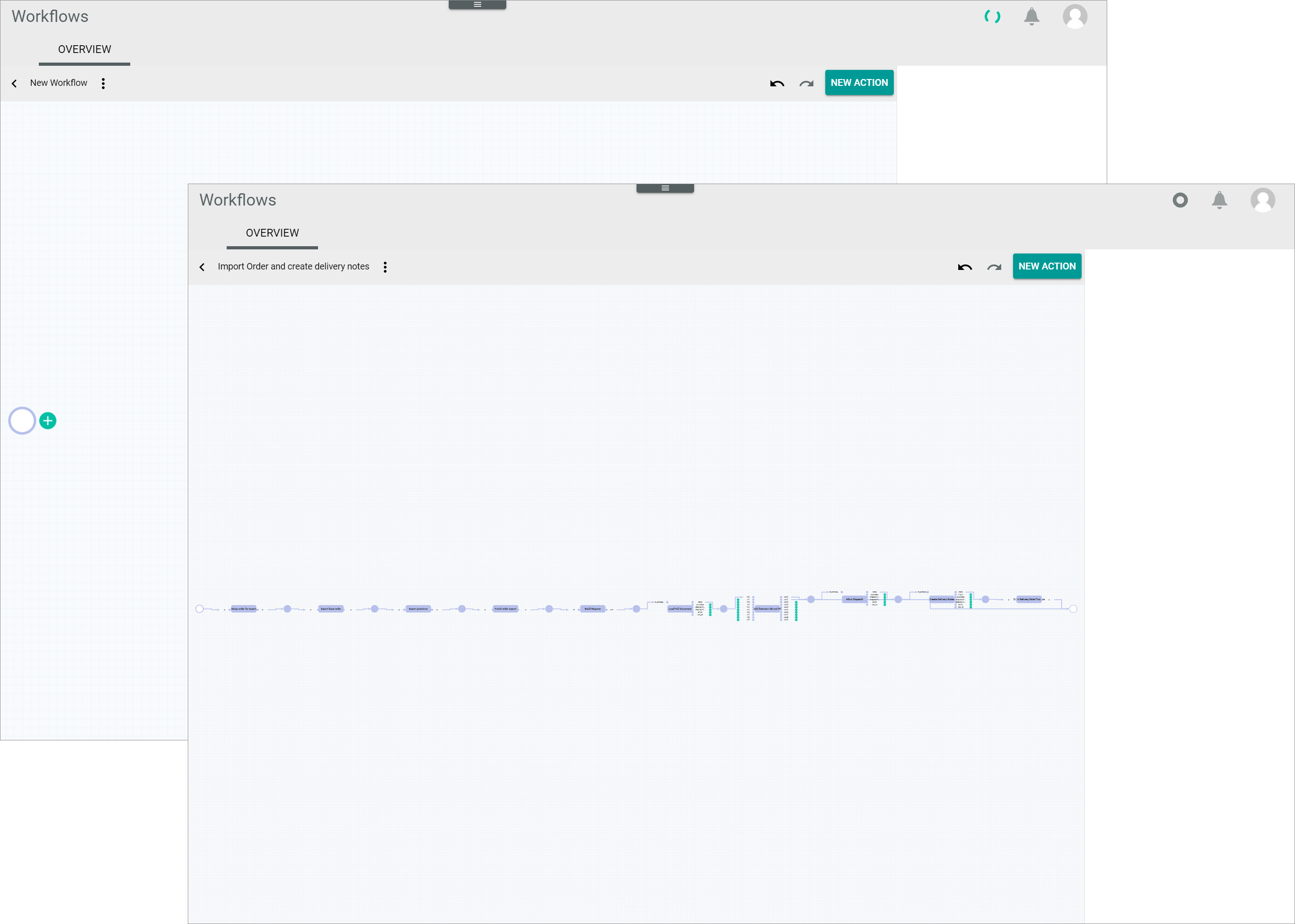
Workflows > Workflows > Tab OVERVIEW > Button Add > Button CREATE
Workflows > Workflows > Tab OVERVIEW > Select a workflow > Select a workflow version
-
Click the
 (Points) button in the upper left corner next to the workflow name.
The workflow context menu is displayed.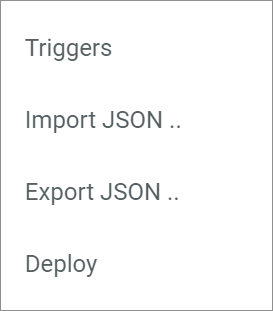
-
Click the Triggers menu entry.
The Edit trigger for workflow "Workflow name" window is displayed.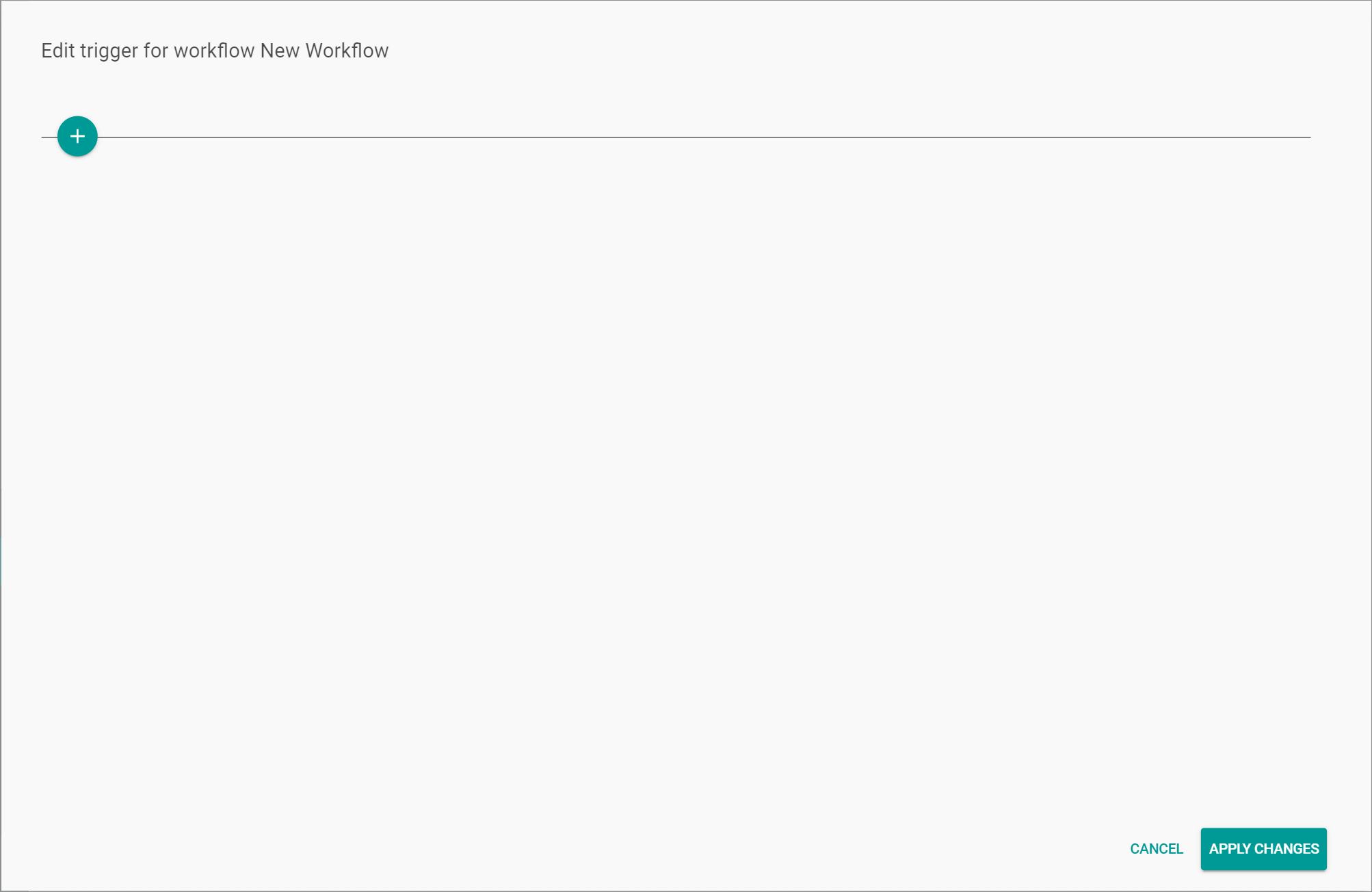
-
Click the
 (Add) button to create a trigger.
A New trigger input line is displayed.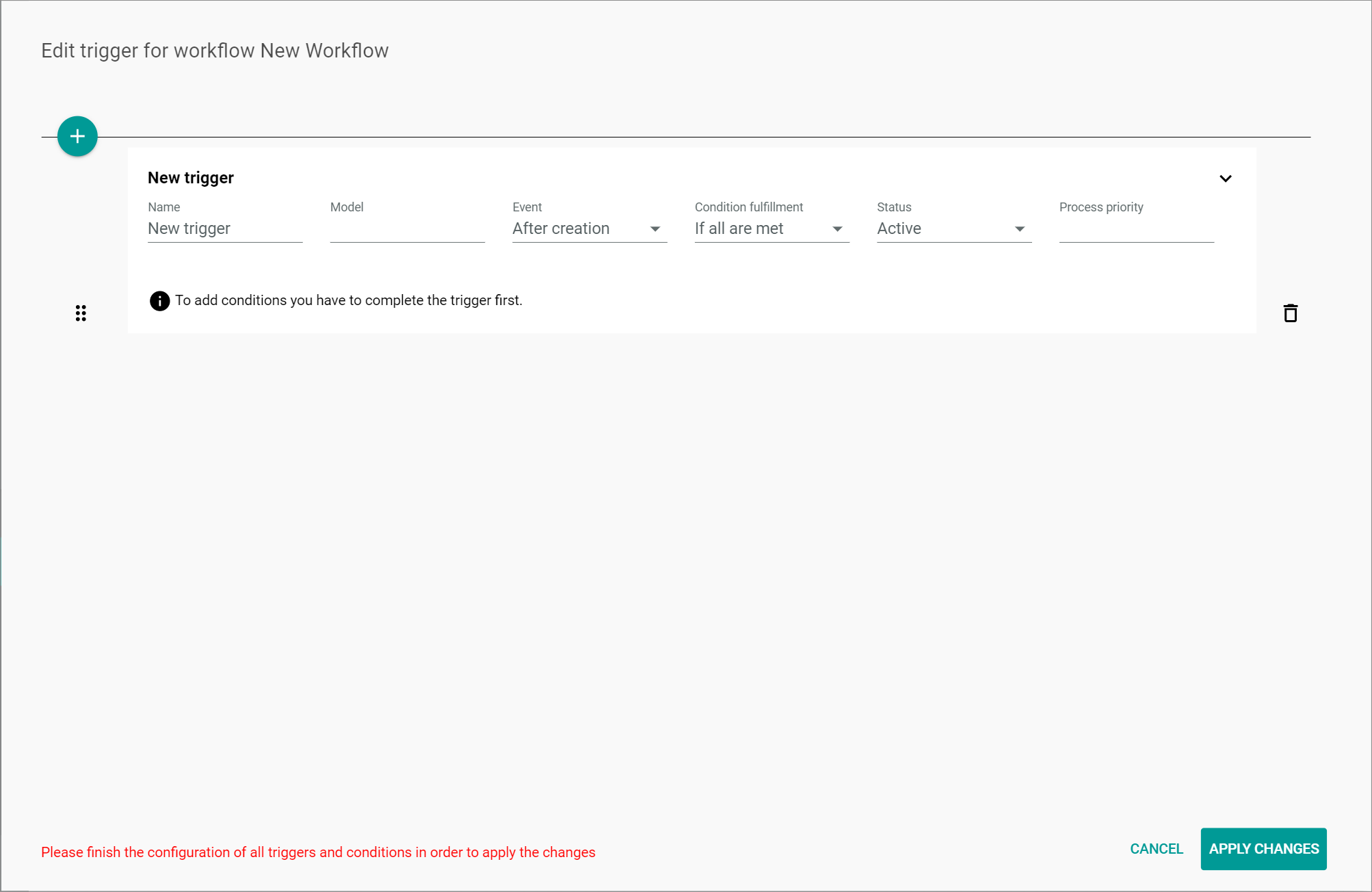
-
Enter a descriptive name for the trigger in the Name field.
The entered name is displayed above the trigger input line. -
Enter the applicable namespace of the desired model in the Model field, for example a PIM product.
The entered namespace is displayed to the right of the trigger name above the trigger input line.The data models can be taken from the relevant API documentation.
-
Click the Event drop-down list and select the appropriate option. The following options are available:
- After creation
Select this option for the trigger to be executed after the model has been created. This option is preselected by default. - After saving
Select this option for the trigger to be executed after the model has been saved.
- After creation
-
Click the Condition fulfillment drop-down list and select the appropriate option. The following options are available:
- If all are met
Select this option if you want all conditions to be met for the trigger to be executed. This option is preselected by default. - If any is met
Select this option if you want the trigger to be executed if any single one of the configured conditions is met.
- If all are met
-
Click the Status drop-down list and select the appropriate option. The following options are available:
- Active
Select this option to activate the trigger. - Inactive
Select this option to deactivate the trigger temporarily.
- Active
-
Enter the priority for the process execution in the Process priority field. The priority is specified with a positive integer. The greater the number, the higher the priority.
As soon as all fields are completed, the
(Add) button to add a condition is displayed. 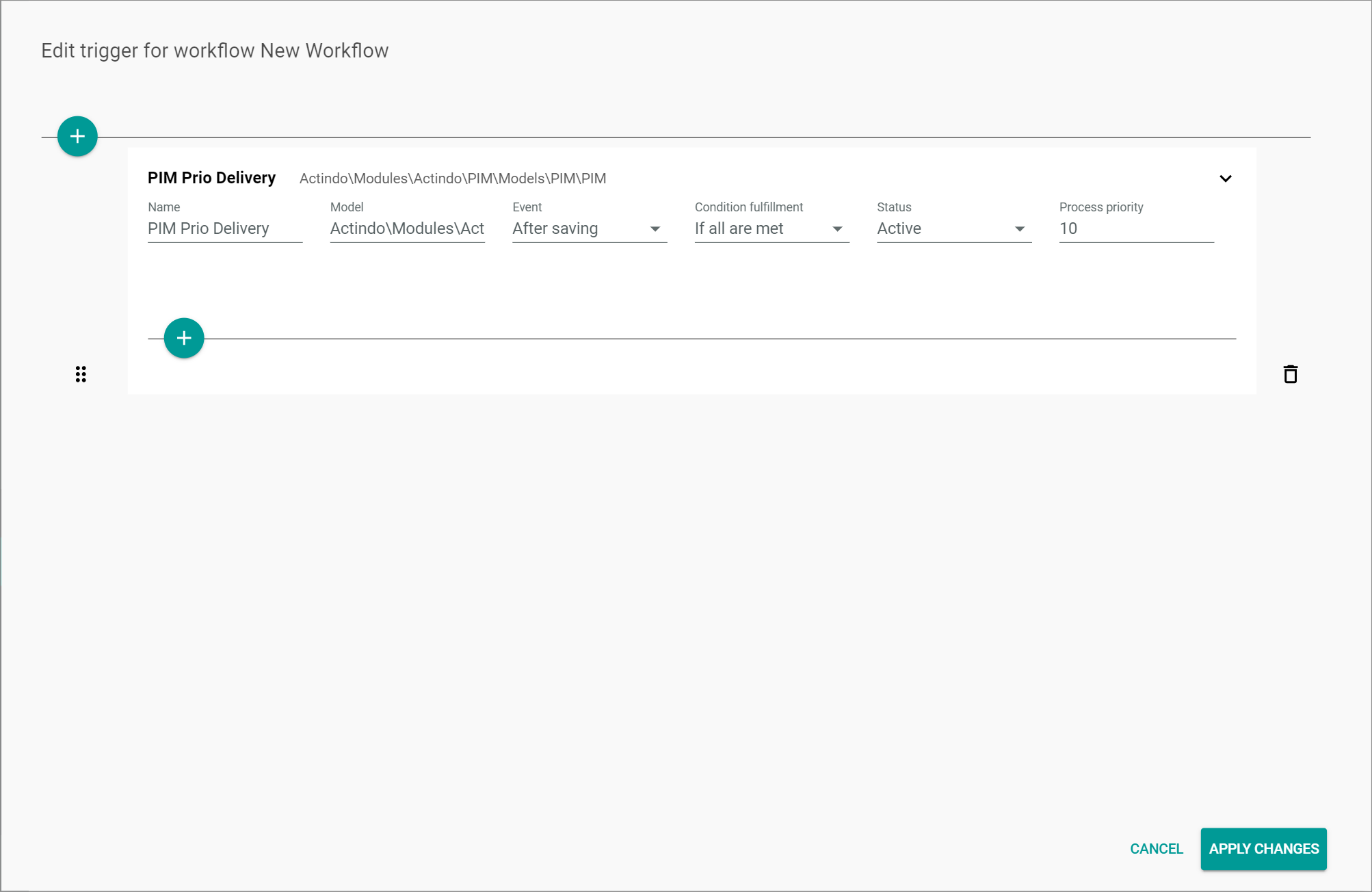
-
If desired, add one or several conditions to the trigger, see Add a condition. You can also create a trigger without adding a single condition.
Repeat the steps 3 to 10 to add a further trigger. You can add an unlimited number of triggers to a workflow.
- Click the [APPLY CHANGES] button.
The trigger has been saved. The Edit trigger for workflow "Workflow name" window is closed.
Add a condition
Add one or several conditions to a trigger to define more precisely when a process is executed.
Prerequisites
All trigger fields have been completed, see Create a trigger.
Procedure
Workflows > Workflows > Tab OVERVIEW > Button Add > Button CREATE > Button Points > Menu entry Triggers
Workflows > Workflows > Tab OVERVIEW > Select a workflow > Select a workflow version > Button Points > Menu entry Triggers
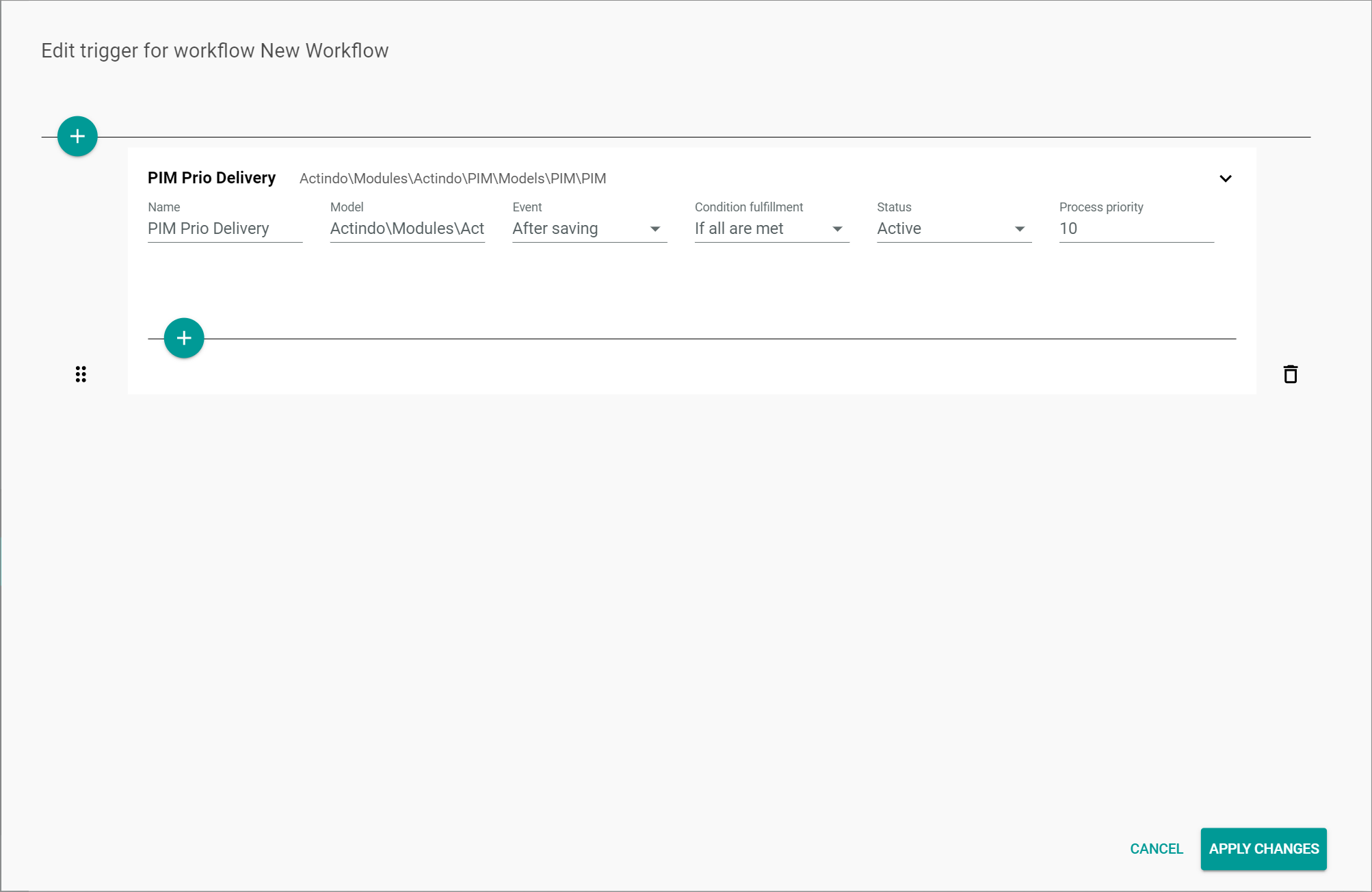
-
Click the
(Add) button.
A new input line is displayed.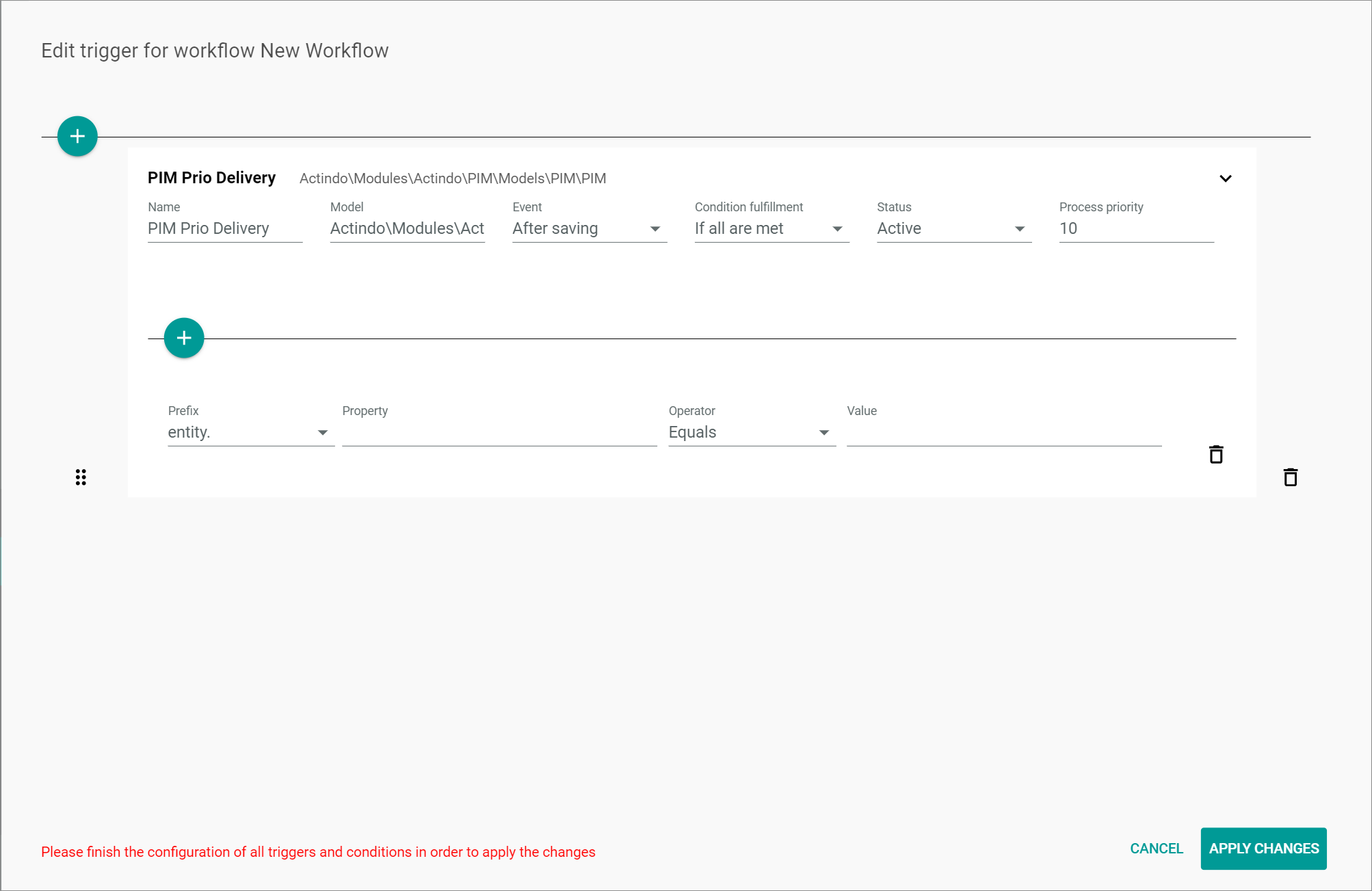
-
Click the Prefix drop-down list and select the appropriate prefix. The following options are available:
- entity.
Select this option if you want to refer to any property independently of its change status. The option is usually selected if the After creation event is selected in the Event drop-down list of the trigger fields. This option is preselected by default. - changeset.
Select this option if you want to refer to a property that has been changed. Only properties that have been changed are included to the change set.
- entity.
-
Enter the applicable property in the Property field.
The properties of an entity you can refer to are described in the relevant API documentation. To include a deeper level of the data field, enter a point . at a time, for instance {$entity._pim_tax_zone.id}. The first point is already included in the Prefix field, so you can start with the property name without adding a point at the beginning.
-
Click the Operator drop-down list and select the appropriate option. The following options are available:
- Equals
Select this option if the property value must equal the value specified in the Value field for the trigger to be executed. - Does not equal
Select this option if the property value must not equal the value specified in the Value field for the trigger to be executed. - Is set
Select this option if any property value must be set for the trigger to be executed. No value must be entered in the Value field.
- Equals
-
If necessary, enter the corresponding value in the Value field.
Repeat the steps 1 to 5 to add a further condition to the trigger. You can add an unlimited number of conditions.
- Click the [APPLY CHANGES] button.
The condition has been saved. The Edit trigger for workflow "Workflow name" window is closed.
Edit a trigger
Edit a trigger to modify any of the previously configured settings. It is also possible to edit or delete a condition for a trigger to be executed.
Prerequisites
At least one trigger has been created, see Create a trigger.
Procedure
Workflows > Workflows > Tab OVERVIEW > Button Add > Button CREATE > Button Points > Menu entry Triggers
Workflows > Workflows > Tab OVERVIEW > Select a workflow > Select a workflow version > Button Points > Menu entry Triggers
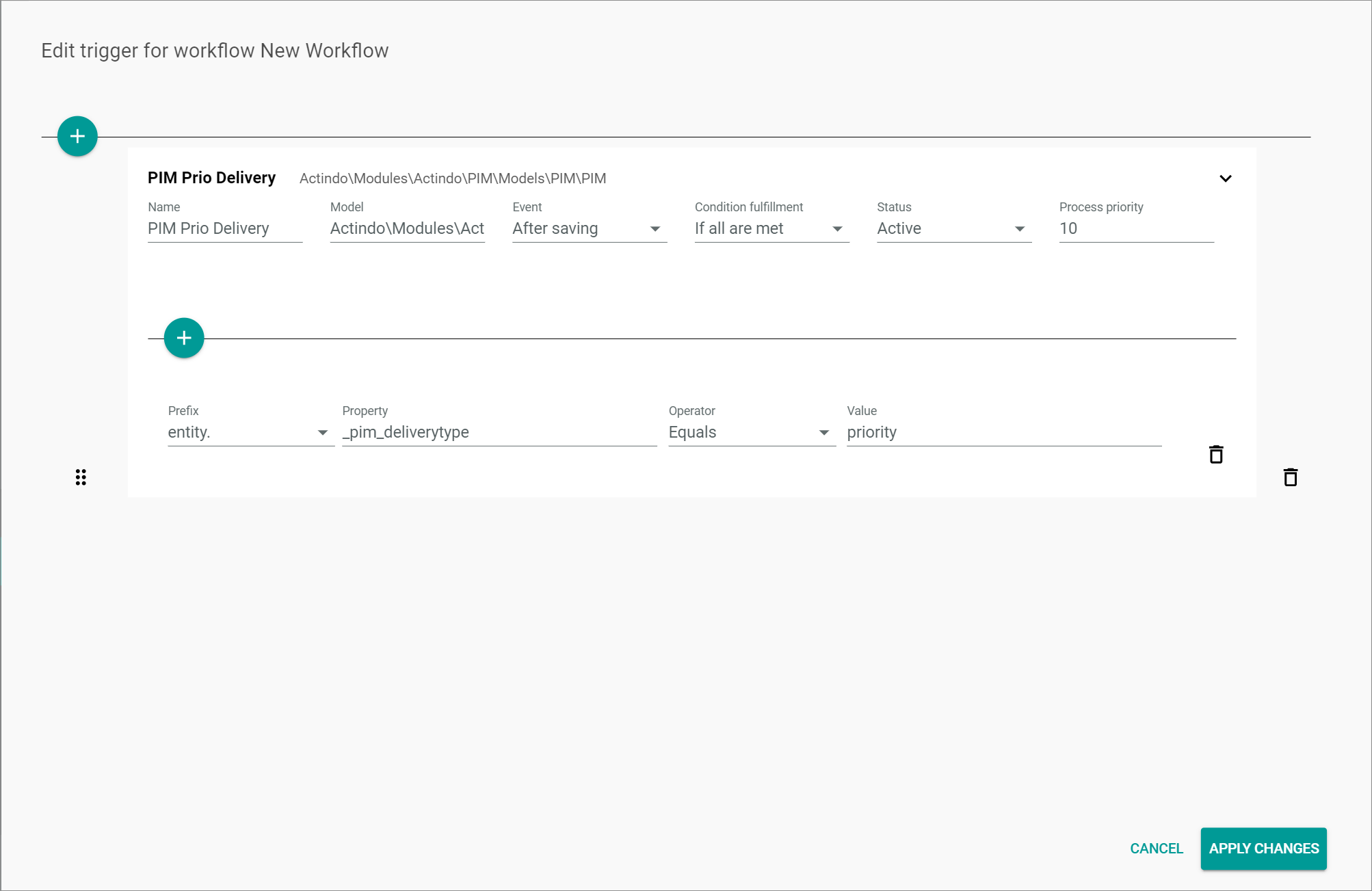
-
Edit the trigger settings as necessary.
-
If desired, edit the conditions:
- Edit the condition settings as necessary.
- Add one or several conditions, see Add a condition.
- Click the
 (Delete) button to the right of a condition to delete the corresponding condition.
- Click the [APPLY CHANGES] button.
All changes have been saved. The Edit trigger for workflow "Workflow name" window is closed.
Change the order of triggers
Modify the position of one or more triggers to set the correct order for the triggers to be executed. The correct order of the triggers is crucial, as the system goes through the triggers in the order they are listed, starting from the top, and stops checking them as soon as a matching trigger is found. This means, that the triggers must be organized from specific to general to cover all possible relevant cases.
Prerequisites
At least two triggers have been created in the workflow version, see Create a trigger.
Procedure
Workflows > Workflows > Tab OVERVIEW > Button Add > Button CREATE > Button Points > Menu entry Triggers
Workflows > Workflows > Tab OVERVIEW > Select a workflow > Select a workflow version > Button Points > Menu entry Triggers
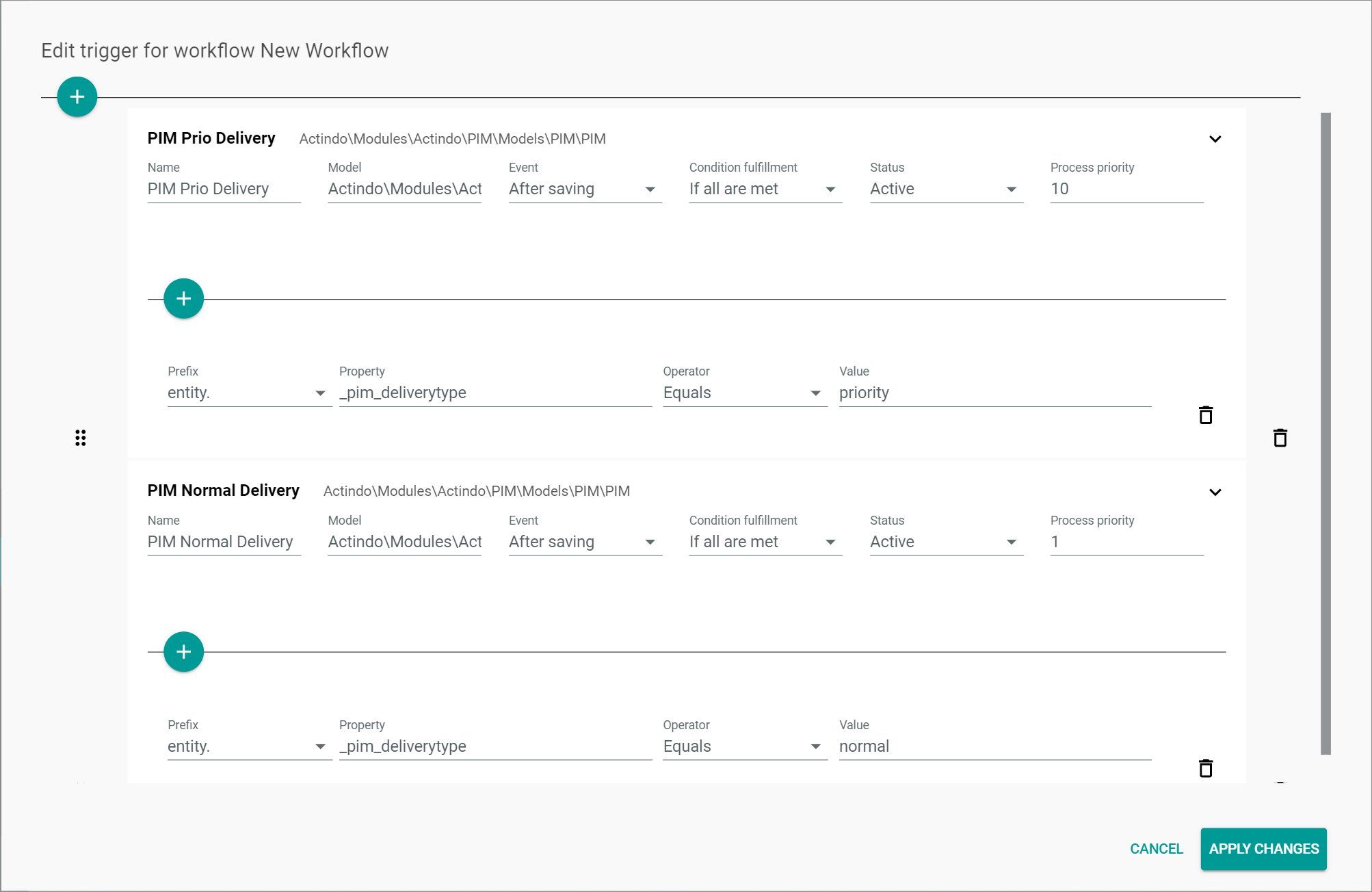
-
Click and hold the
 (Drag) button to the left of the trigger you want to move to another position in the list.
 -
By using drag and drop, move the selected trigger to the desired position in the list.
-
If necessary, repeat the steps 1 and 2 for all triggers that need to be repositioned.
- Click the [APPLY CHANGES] button.
All changes have been saved. The Edit trigger for workflow "Workflow name" window is closed.
Delete a trigger
You can delete a trigger that is no longer relevant.
Be aware that any deletion is permanent and cannot be undone. You can deactivate the trigger temporarily by changing status to Inactive in the Status drop-down list.
Prerequisites
At least one trigger has been created, see Create a trigger.
Procedure
Workflows > Workflows > Tab OVERVIEW > Button Add > Button CREATE > Button Points > Menu entry Triggers
Workflows > Workflows > Tab OVERVIEW > Select a workflow > Select a workflow version > Button Points > Menu entry Triggers
-
Click the
(Delete) button to the right of the trigger to be deleted.
The trigger and all corresponding conditions are removed from the list. - Click the [APPLY CHANGES] button.
The trigger has been deleted. The Edit trigger for workflow "Workflow name" window is closed.