

Track the workflow process
A process is an instance of a workflow. When an operation is performed, a data entity is generated, for example an invoice, which in turn initiates a workflow process. Therefore, for every single operation performed, an individual instance of the corresponding workflow, that is, a process, is initiated.
A process has a start and an end place, as well as different stages (places and actions) which the initial data goes through in order to be processed. For a detailed description of the workflow elements, see Workflow and process elements.
The workflow process can be tracked to check the status of a whole process or of individual actions, as well as the status and the content of a token.
Check the process status
The process status can be checked to monitor how far a process has progressed, detect potential problems, and solve any problems that may occur as a result of a misconfiguration or any other external issues, so that the process can continue running.
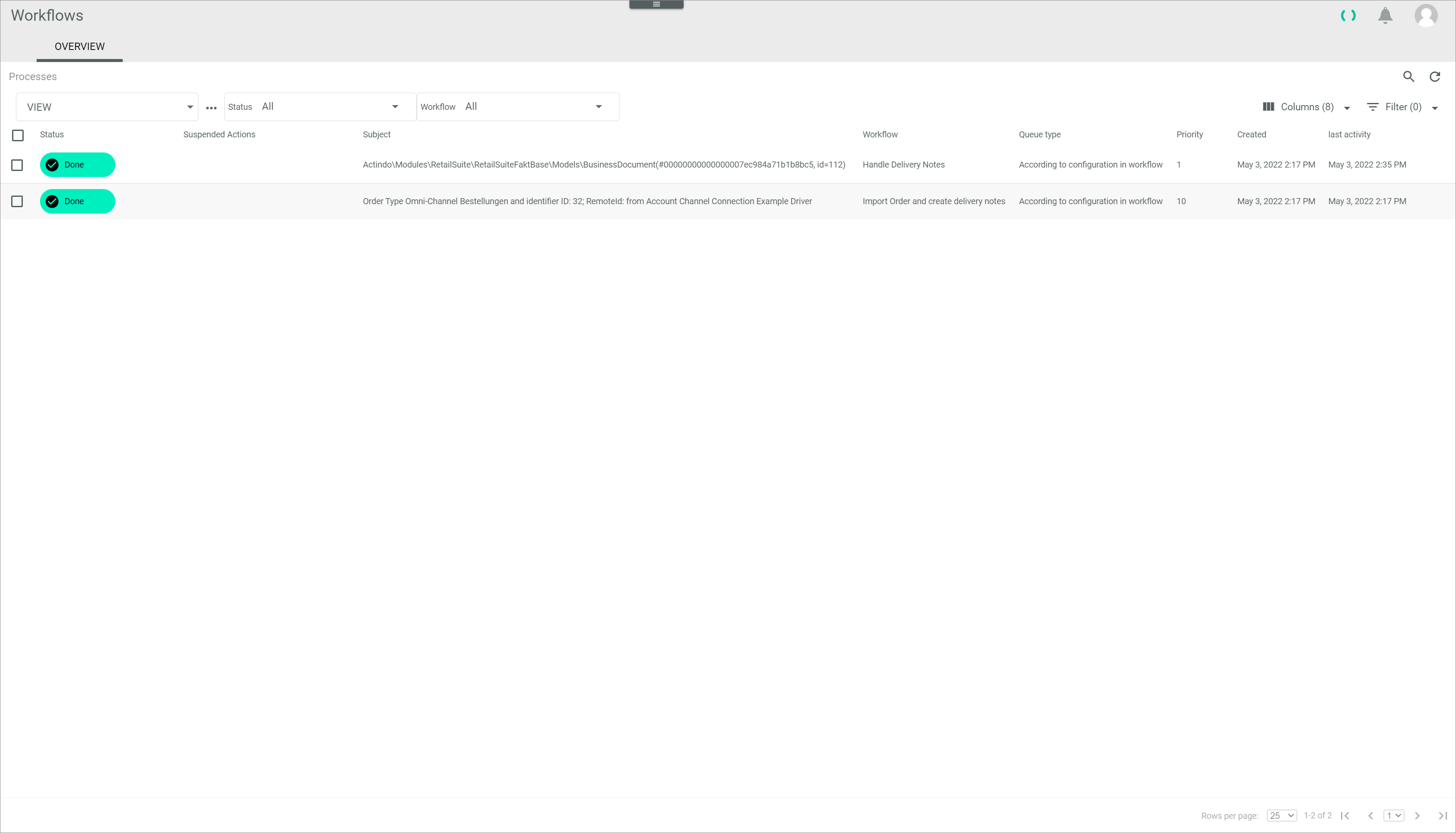
The OVERVIEW tab in the Processes menu entry displays a list of all processes that are currently being executed or have been executed in the system. By default, all existing processes are displayed but can also be filtered according to different criteria.
Prerequisites
- A workflow has been created, see Create a workflow.
- A workflow process has been initiated.
Procedure
Workflows > Processes > Tab OVERVIEW
-
Click the Status drop-down list and select the All option.
All processes, regardless of their status, are displayed. -
Click the Workflow drop-down list and select a desired workflow type.
All processes of the selected workflow are displayed. -
Check the status of the desired process in the Status column of the processes list.
- If desired, click a process to display the Process ID view, which includes a diagram of the process and detailed information about the individual process actions and tokens.
For detailed information about individual process actions and tokens, see Check the process action status and Check the token status and content.
Check the process action status
The process action status can be checked to monitor which actions have already been executed, if problems have occurred and at what place.
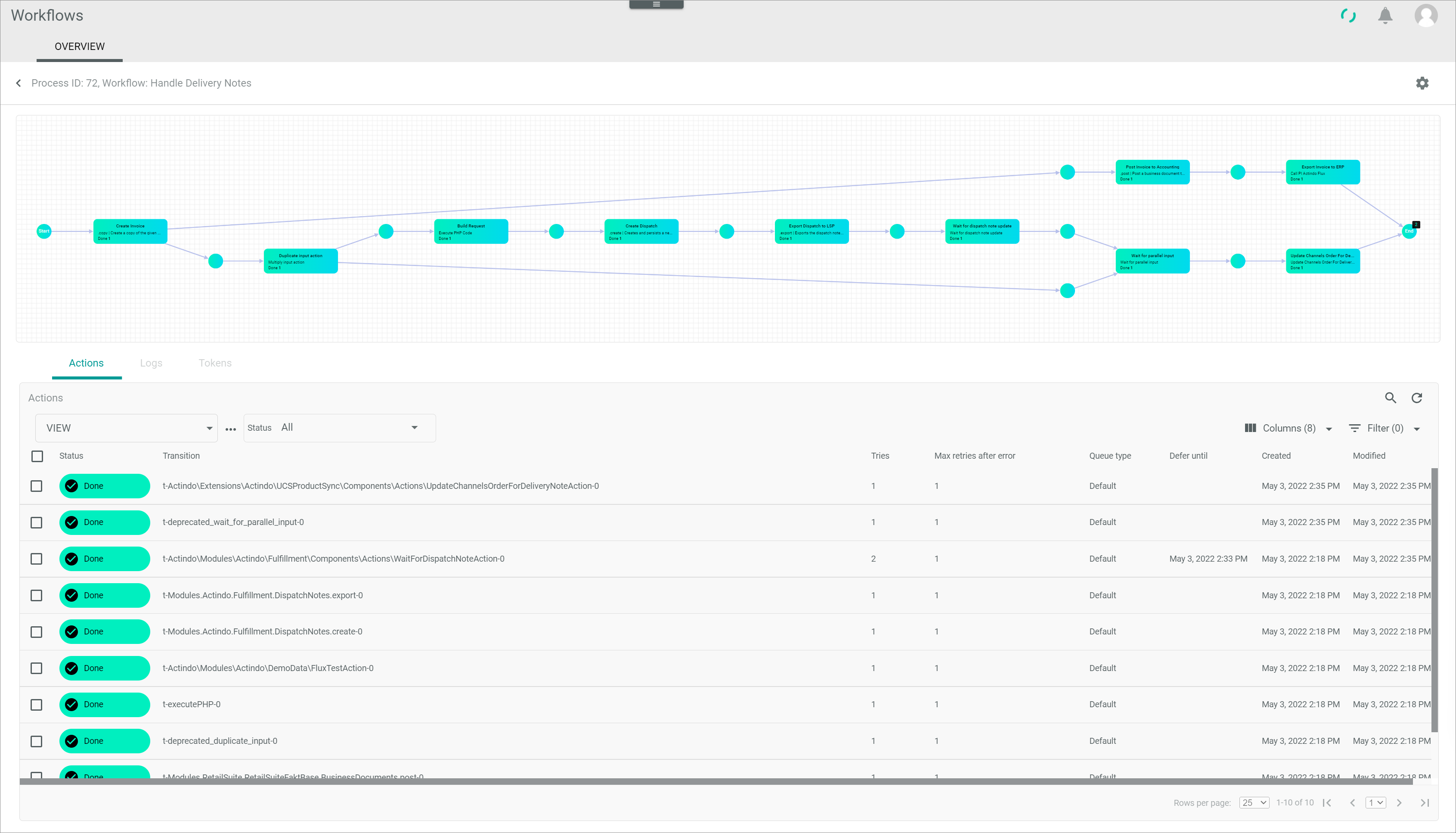
The Process ID view displays a diagram of the selected process including all places and actions. If the process is currently active, the process execution can be observed in real time.
Further details about the process actions included in the diagram as well as about the logs and tokens are displayed in separate tabs at the bottom of the Process ID view.
Prerequisites
- A workflow has been created, see Create a workflow.
- A workflow process has been initiated.
Procedure
Workflows > Processes > Tab OVERVIEW > Select process
-
Click the Actions tab at the bottom of the Process ID view.
The Actions tab is displayed.By default, the Actions tab is preselected.
-
Click the Status drop-down list and select the All option.
All actions, regardless of their status, are displayed. -
Check the actions displayed in the diagram. The workflow process diagram displays the actions in different colors depending on their current status:
- In progress (blue)
- Done (green)
- Error (red)
- Pending (white)
-
Click the action to be checked in the diagram.
The selected action is displayed in the Actions tab. -
Check the action status in the Status column. The following statuses can be displayed:
- In progress
- Done
- Error
- Suspended
- Process aborted
-
Check the number of tries for the action in the Tries column.
-
Check the number of times an action must be retried after error in the Maximal retries after error column.
-
Check the assigned queue type in the Queue type column.
The queue type is assigned to an action when editing a workflow, see Edit an action.
- Check when the action will be executed next time in the Defer until column.
A list of all actions, regardless of the process they are part of, can be displayed in the Process actions tab. There they can be filtered according to their status and modified simultaneously, if necessary. By clicking a specific action in the process actions list, the corresponding Process ID view will be displayed. For detailed information, see Process actions.
Check the token status and content
The token status and content can be checked to monitor how data progress within a process and, if necessary, detect and solve any data type related issues.
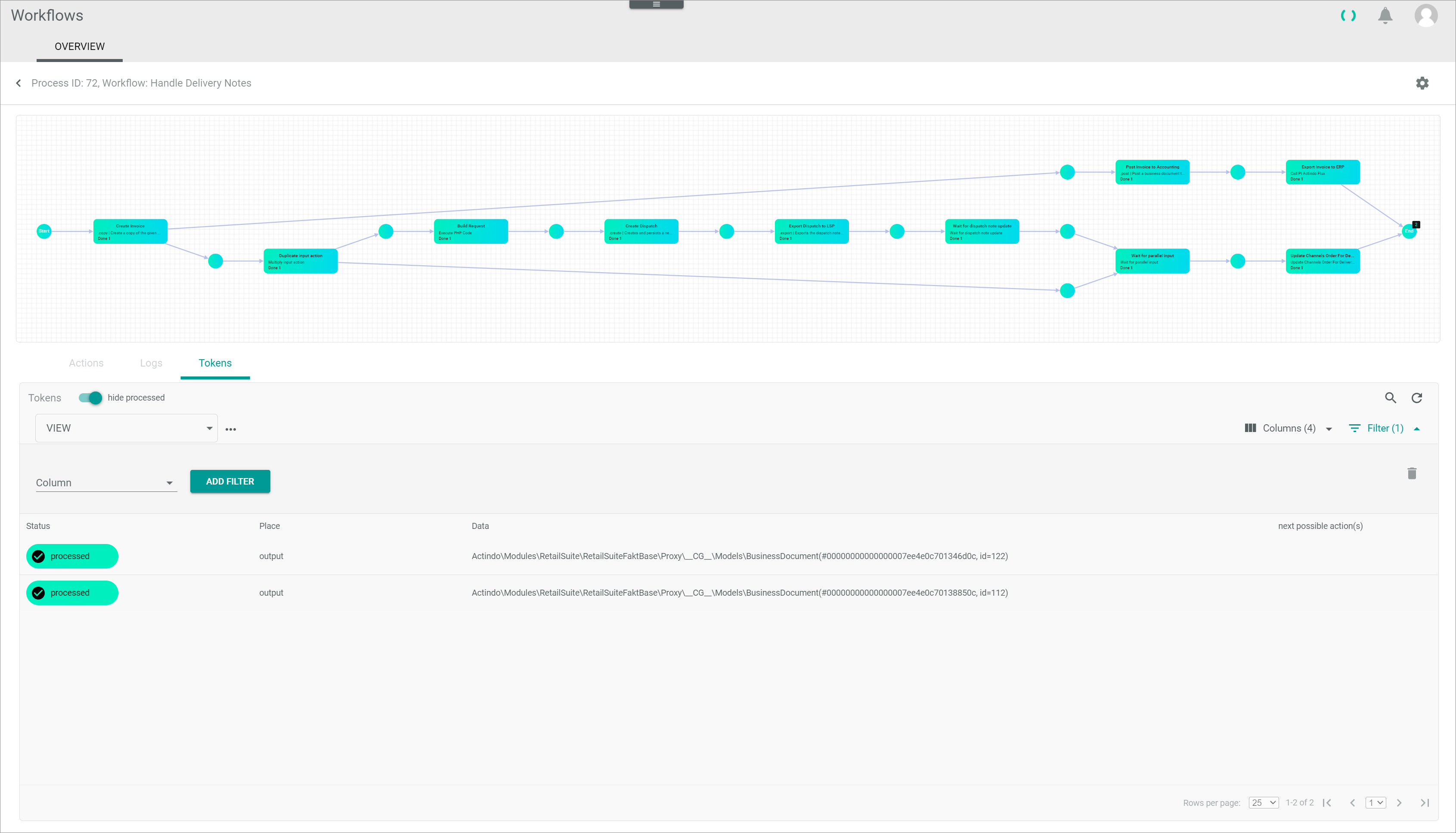
The Tokens tab displays the tokens being processed. A token is a container carrying any data needed to complete an action, which could be a number or a document for example.
A process is started with a single token at the start place, which will be input in an action to be executed. In turn, an action can output several tokens, which will become inputs for subsequent actions. It is therefore possible that a place contains several tokens, for example, several delivery notes issued for different parts of a same order. Each token will then be processed separately, that means, that the subsequent actions will be executed once for each token available.
Prerequisites
- A workflow has been created, see Create a workflow.
- A workflow process has been initiated.
Procedure
Workflows > Processes > Tab OVERVIEW > Select process
-
Click the Tokens tab.
The Tokens tab with a list of all tokens within the selected process is displayed.If the Hide processed toggle is active, only the tokens currently waiting to be further processed are displayed.
-
Disable the Hide processed toggle.
All tokens, including the ones that have already been processed, are displayed. -
Check the places displayed in the diagram.
The places are green if at least one token has passed through them, otherwise they are white.A place can contain a black square displaying a number. This number specifies the number of tokens waiting to be processed at that place.
-
Select a place in the diagram.
The token input in the selected place, if any, is displayed in the Tokens tab. Otherwise, an information message is displayed. -
Check the token status in the Status column. The following statuses are available:
- Processed (green)
- Being processed (blue)
- Error (red)
- Unprocessed (white)
-
Check the place where the token is located in the Place column.
-
Check the data contained in the token in the Data column.
-
Check the next compatible action(s) where the token can be input in the Next possible action(s) column.
- If necessary, click an action in the diagram to display further information in the Actions tab.
For detailed information about checking the action status, see Check the process action status.
A number is displayed next to the status of each action. This number refers to the number of tokens processed in this action, and it depends on the action status and the number of tokens received.